
AutoDraw: fast, free icons from a rough sketch, with a fixed hand-drawn library


Status: Active | Last tested: 2026-09-27 | Re-check: trigger-based (max 6 months)
Active: the tool is current and recommended.
Reviewed as documented at autodraw.com in September 2026, against the tool as served, the vendor's Experiments listing dated May 2017, the launch post dated 11 April 2017, and the vendor's own terms of service and privacy policy as published.
AutoDraw scores 5.0 out of 10 on the U365 CI-First Review, which is CI-First Positive, with a Humics-Neutral protection badge at +1 / +3 and a Medium AI Imposture Risk whose Medium trap is the Skill Illusion. A person who cannot draw gets a clean, consistent icon in under a minute, free and without an account, and the tool has published no update and no support commitment since 2017.
For detailed explanations of the CI-First evaluation terms used in this review, including the Humics Protection Badge and the AI Imposture Risk levels, see the Glossary at the end of this post.


In this Tool Review
Status and Re-check
AutoDraw is a free, browser-based drawing tool made by Google Creative Lab. You sketch with a mouse, a stylus or a finger, and a suggestion bar above the canvas guesses what you are drawing and offers professionally drawn icons that you can swap in with one click. There is nothing to download, nothing to pay for and no account to create. It arrived in April 2017 as a Google AI Experiment and it is still served from the same address today.
This review is written against the tool as it stands on 2026-09-27. The re-check is trigger-based with a hard ceiling of six months, because the tool is not under active development and the risk that matters here is availability rather than version drift.
Re-check immediately, ahead of the six-month ceiling, if any of the following happens:
Trigger | Why it triggers a re-check |
autodraw.com stops loading, or redirects to a different product | The review recommends a live browser tool, so availability is the whole product |
Google publishes a statement about the future of the AI Experiments collection, or moves AutoDraw out of it | The tool has no published support commitment, so any signal from the vendor changes the continuity picture |
The tool reappears with a new suggestion library, new export formats or an account requirement | Any of those three changes the Tool Snapshot and the rating |
Google changes the terms that govern the experiment in a way that touches user content or the artist library | The Limits section and the Section 7c finding below both depend on the operative text |
A U365 workflow starts depending on AutoDraw for a recurring deliverable | A tool used once for a slide is a convenience; a tool used weekly for graded material needs a continuity plan |
At the six-month ceiling, re-check the same list even if nothing appears to have changed. A tool with no update history will not announce its own removal.
Three things in this review are stated as findings rather than defects, and they are worth naming at the top so that the rest reads in the right order:
The tool has had no significant product update since its 2017 launch. That is a finding about the ceiling of the tool, not a bug to work around. The Limits section below says what it costs you in practice.
The suggestion library is a fixed set of human-authored drawings, measured in the hundreds, not a generative model. AutoDraw does not create a new image for you. It matches your stroke to an existing one drawn by an artist.
The scope of the tool is narrow on purpose. It is a low-friction visual-communication aid, not a design platform, and this review classifies it that way and says plainly what it cannot do.
What AutoDraw Is, and What It Is Not
Most confusion about AutoDraw comes from the word "AI" sitting next to the word "draw". People arrive expecting a generator and find a recognizer. The two are different products with different failure modes, and the difference decides both what you can ask of the tool and what you should never ask of it.
What AutoDraw is | What AutoDraw is not |
A browser drawing tool with machine-learning sketch recognition | A text-to-image generator. There is no prompt box anywhere in the interface |
A recognizer that matches your stroke to a curated library of drawings made by human artists | A model that synthesizes novel images. Every suggestion it offers already existed before you drew |
A one-click replacement path from a rough sketch to a clean icon | A photo editor. It cannot open, retouch, crop or composite a photograph |
A free tool with no account, no download and no cost | A workspace. Nothing is saved for you between sessions, and there is no project library |
A tool for icons, symbols and simple spot illustrations | A layout tool. There is no page, no margin, no grid and no multi-element composition system |
A tool that runs in the browser on phone, tablet, laptop and desktop | A professional illustration suite. There are no layers, no vector export and no typographic control |
AutoDraw's own description on its Google Experiments page reads: "It pairs machine learning with drawings from talented artists to help everyone create anything visual, fast. There's nothing to download. Nothing to pay for. And it works anywhere: smartphone, tablet, laptop, desktop, etc."
That sentence is accurate, and the word to hold on to is "drawings", plural, meaning a set of pre-existing artworks. The tool's recognition engine "uses the same technology used in QuickDraw, to guess what you're trying to draw", in the vendor's wording, and the same page states that "Right now, it can guess hundreds of drawings and we look forward to adding more over time."
The launch post on the Google blog is short and worth reading in full for the intent behind the tool. Its author, a creative technologist at Google Creative Lab, opens with the problem the tool answers: "Drawing on your phone or computer can be slow and difficult, so we created AutoDraw, a new web-based tool that pairs machine learning with drawings created by talented artists to help you draw." The post names the artists and studios who contributed the original drawings, and it points at Quick, Draw! as the experiment behind the recognition technology.
Where the naming gets genuinely confusing is the pair of sibling experiments. Quick, Draw! is a game. It shows you a word, gives you a short time limit, and asks you to draw the thing while a neural network guesses. It collects doodles. AutoDraw is the practical sibling that takes the same recognition ability and turns it into a drawing surface you can actually make something on. In the vendor's own framing across both pages, Quick, Draw! is where the technology was demonstrated, and AutoDraw is where it was given a purpose.
There is one more distinction a reader needs before deciding. AutoDraw the tool is not AutoDraw the suggestion feature. Inside the interface, the toolbar carries a tool labelled AutoDraw alongside Draw, Type, Fill, Shape, Undo and Delete. Selecting that tool is what turns recognition on; if you never select it, you are using a very simple drawing program with no machine learning in the loop at all. Several of the "AutoDraw does not do X" complaints found in the wild are really complaints about the plain drawing surface, not about the recognizer.
Tool Snapshot
Item | Detail |
Name | AutoDraw |
Vendor | Google Creative Lab |
Authors credited by the vendor | Dan Motzenbecker and Kyle Phillips, "with friends at Google Creative Lab", in the Experiments page credit line |
Address | autodraw.com |
Category | Browser drawing tool with machine-learning sketch recognition |
First release | April 2017. The launch post on the Google blog is dated 11 April 2017; the Experiments listing is dated May 2017 |
Vendor's one-line purpose | "Fast drawing for everyone." |
Recognition technology | The same sketch-recognition technology used in the Quick, Draw! experiment, per the vendor |
Suggestion library | Drawings by named human artists and studios; the vendor states the tool "can guess hundreds of drawings" and that the library was intended to grow over time |
Tools in the interface | Select, Draw, Type, Fill, Shape, Undo, Delete, and the AutoDraw suggestion tool |
Price | Free. The vendor states "Nothing to pay for" |
Account required | No. A visitor lands on the canvas and can start drawing |
Platforms | Any modern browser; the vendor names smartphone, tablet, laptop and desktop |
Install or plugin | None. The vendor states "There's nothing to download" |
Export | Raster image export. Independent reviewers report PNG only, with no vector output; no vector export control is published on the tool's own page |
Saving between sessions | Not offered. There is no project store, and the tool's own help content does not describe one |
Collaboration | None. There is no shared canvas, no comments and no multi-user editing |
Support commitment | None published. The tool is presented as an experiment rather than a supported product |
Update history | No significant product update identified since 2017 |
Sibling experiment | Quick, Draw!, which shares the recognition technology |
Licence terms for the artist library | Not published on the tool page. This is examined in Section 7c and in the Limits section |
The snapshot row that matters most for institutional use is the one about support. There is no vendor page that promises AutoDraw will be available on any future date, and none that promises the suggestion library will grow. The vendor said in 2017 that it looked forward to adding more drawings over time. Nothing in the material published since then measures how much was added, and no measurement of the current library size appears on the vendor's own pages beyond the word "hundreds".
The Problem
The problem AutoDraw was built to solve is small, real and recurring. You need one visual, you need it now, and you are not a designer.
Watch how that plays out in an ordinary working day. A faculty member is finishing a slide deck the night before a session and wants a simple icon for "teamwork", "deadline" and "feedback". The honest options in front of them are these. Search an image service and spend twenty minutes deciding between results of mixed quality and mixed licensing. Open a full design suite and lose the evening learning it. Commission an illustrator and wait a week. Draw something by hand, which for most people produces a shape that looks like a mistake next to finished typography.
Each of those options carries a hidden cost beyond the clock. The image search carries a licensing question you may not be able to answer. The design suite carries a skill cost that never gets paid back for a one-off deck. Hand drawing carries a quality cost that shows up as visual noise on a page that is otherwise clean.
The specific gap is this. A large share of everyday visual communication does not need original art. It needs a symbol that a viewer recognizes in half a second: a house, a clock, a lightbulb, a document, an arrow, a person. This class of image is small, repeated and unglamorous. It is also exactly the class where a person who cannot draw has no fast path, because drawing a recognizable clock from scratch by hand is genuinely hard, and choosing a finished clock icon is trivially easy.
AutoDraw's answer is to let you draw badly and finish well. You produce the shape you can produce. The tool recognizes the intent and offers the version a professional would have drawn. You click once. The gap between your hand and a clean icon collapses to a single interaction.
There is a second, less obvious problem the tool addresses, and it explains why teachers adopted it so quickly in 2017. Drawing badly in public is uncomfortable for adults. Students and faculty who would never sketch on a whiteboard in front of others will happily sketch into a tool that quietly fixes the result. The tool removes the social cost of drawing, not just the time cost. That is a pedagogical move as much as a design one, and the education-focused coverage from 2017 noticed it immediately.
The Outcome
The outcome for the user is a clean icon on the page in seconds, produced without design skill and without leaving the browser. That is the whole promise, and for its class of task it holds up.
Be precise about what "seconds" means in the common case, because the honest number is larger than the demo number. The recognition loop itself is fast: as you draw, the suggestion bar fills with candidates, and selecting one replaces your stroke immediately. Independent reviewers who used the tool describe exactly that experience, with one reporting that the suggestion engine "reacted fast", with "no lag between finishing a stroke and seeing options appear". The time goes elsewhere. It goes into deciding what to draw in a form the recognizer will accept, into rejecting suggestions that are close but not what you meant, and into a second attempt when the recognizer does not know your object at all. Realistic outcome for a known object: well under a minute from opening the page to a finished icon. Realistic outcome for an object outside the library: no amount of time fixes it, and you should switch tools rather than keep drawing.
What the user gets at the end is genuinely usable in the contexts this review recommends. A worksheet with a clean apple and a clean clock. A slide with a recognizable process arrow. A handout with simple symbols for what to bring and where to go. The visual quality is of the clip-art class: flat, clear, consistent because the library was drawn by a small group of artists working to a common brief. Consistency across icons is a real advantage over search results, where style varies wildly from image to image.
The outcome for the institution is narrower, and the review should not oversell it. AutoDraw does not improve anyone's design capability, because the user never does the design work. It removes a blocker. A person who needs a symbol gets a symbol and moves on to the part of the work that needed their judgement. That is a genuine gain in throughput for communication tasks and a zero gain in design skill, and the distinction is worth holding onto when the rating is read later in this review.
There is one outcome the tool delivers that is easy to miss and worth documenting, because it is the part most likely to survive into longer-term use: the recognition step is a teaching moment about how machine learning sees. When you draw a giraffe and the tool offers a frog and a hot dog, you have just watched a classifier fail in a way you can talk about. That is why the tool belongs in a classroom conversation about AI even where it does not belong in a production workflow.
Who Should Use AutoDraw
The tool rewards a specific kind of user and wastes the time of others. Read the table as a decision aid rather than a description.
Profile | Verdict | Why |
Faculty building slides, worksheets and handouts | Use it | Fast symbols for the recurring visual vocabulary of teaching: time, teamwork, steps, warning, home, check |
Students who need a visual and cannot draw | Use it | Removes the skill barrier without removing the thinking, at zero cost |
Programme and operations staff making internal one-pagers | Use it | Icons for a process sheet or a form, produced in the browser between other tasks |
Workshop facilitators who sketch live while presenting | Use it carefully | The recognizer helps only if the object is in the library; a live failure in front of a room is worse than no tool |
Communication staff producing campaign assets | Do not use it as the main tool | A campaign needs layout, type and brand control that this surface does not have |
Design teams producing client or institutional identity work | Do not use it | No layers, no vector export, no typographic control, no licence clarity for commercial artwork |
Anyone needing a photograph edited or a graphic composited | Do not use it | The tool has no photo pipeline at all |
Anyone needing a novel illustration that does not exist yet | Do not use it | The library is finite and human-drawn; if your subject is not in it, the tool cannot produce it |
Teams needing shared canvases, comments or version history | Do not use it | There is no collaboration surface and no saved project |
Anyone needing vector output for print at scale | Do not use it | Export is raster; large-format reproduction is out of scope |
Institutions that need a vendor support commitment | Use it with a documented fallback | No support commitment is published, so plan the exit before you depend on it |
Two usage rules follow from the table and are worth stating as rules rather than advice.
First, treat AutoDraw as a step in a workflow, never as the environment a workflow lives in. Sketch the symbol, click the suggestion, export the image, and place the file in the tool that owns the deliverable. Because nothing is stored in AutoDraw, an export is the only artifact that survives, and a workflow that already keeps its files elsewhere is immune to the tool disappearing.
Second, teach the failure mode alongside the tool. A user who has been told that the recognizer knows hundreds of objects, and that the list was fixed years ago, will not spend ten minutes forcing a giraffe into a tool that thinks it is a hot dog. They will switch to a different route and move on. That single sentence of onboarding saves more time than any feature in the tool.
U365 Institutes Alignment
Ratings below are about fit with each institute's teaching and working reality, not about the tool's overall quality. The design and communication institutes rate highest because the tool's whole subject matter is visual communication. The technology institute rates lowest because the tool teaches almost nothing about how the recognition works, and offers no route to the data, the model or the training pipeline.
Institute | Rating | Why | The limit that holds the row |
UIT (Technology, AI, Data Science) | Low to Medium | The competency is classifier-output appraisal, and it is the one thing this tool genuinely hands a technology cohort: a live, accountless, zero-setup classifier whose failures are visible, reproducible by anyone in the room, and produced fast enough to test a hypothesis in a session. The Fellow's work is real and survives the removal of the tool: state what the recogniser's output is and what it is not, run the failure test as a controlled comparison rather than as a demonstration, distinguish a top-class match from a measure of correctness, and explain why "no candidate scored high enough" and "the wrong class scored highest" are different failures with different consequences in a deployed system. AI Developer Specialist publishes a text-classification module and a responsible-design module, which is a published home for the neighbouring skill. | The tool teaches none of the mechanism. A student can observe a classifier behaving and cannot inspect it, tune it or reproduce it, so the observation stays a discussion prompt rather than a curriculum asset. Nothing here is assessable as engineering practice: no model, no dataset, no weights, no API and no configuration surface. No published U365 programme assesses classifier appraisal at the level of a classification call, so the row is coursework rather than a credential chain. |
UIB (Business Management, Entrepreneurship) | High | Two commercial competencies, and they are the two this institute's own programme catalogue is built on. The first is technology-cost appraisal at zero: the tool is free, accountless and needs no download, which makes it the cleanest teaching case in this series for the question a founder actually faces, which is not what the licence costs but what the tool removes from the critical path and what it costs to depend on it. Every published competitor in this space meters something; AutoDraw meters nothing and publishes no support commitment, and a Fellow who can state why a zero-price tool with no support commitment has a bounded downside and an unbounded continuity risk is doing real commercial reasoning. The second is build-versus-wait judgement on a visual: a venture that needs a clean symbol in two minutes should not commission one, and the capability to make that call is a management competency rather than a design one. The review's own rule to use the tool as a step in a workflow and never as the environment a workflow lives in is that competency written out. | The tool teaches no management, finance, entrepreneurship or leadership content of its own, and neither competency has a published assessment home. A word-start, accent-folded search over all 79 published programme descriptions returns zero programmes for total cost of ownership, unit economics, procurement and supplier, and one for budget, so the row is coursework and not a credential chain and no UIB credential is mapped. |
UIC (Digital Communication, Marketing) | High (primary) | Closest fit to the tool's purpose. Communication students produce fast, consistent symbols for social content, posters, storyboards and campaign sketches without needing illustration skill. The recognition conversation itself is a media-literacy case study: how a machine flattens visual meaning into the nearest label it has, and why that matters when the machine's label decides what a reader sees | The tool supplies none of the reasoning. It publishes no guidance on when a machine-suggested image is the wrong choice, and nothing in it asks the student to justify a selection, so the literacy work has to be built by the course |
UID (Digital Design, UX/UI) | High | Direct fit for design and interaction teaching: rapid icon studies, visual vocabulary building, wireframe symbol sets and first-pass composition sketches. The ceiling is pedagogically useful, because a design student reaches the limits of the tool within an hour and can then state precisely what a professional design tool must provide | The tool builds nothing a design course assesses. There is no vector output, no layer model, no type control and no export standard, so the student's finished work has to be made elsewhere |
U365 methods, not an institute (UNOP, ULM, LIPS, CARE and the UP-Context Method) | Applicable | Supports the CI-First position that a tool should remove mechanical friction so that judgement stays with the person. The friction removed here is hand-to-symbol translation, which is genuinely mechanical | The counter-risk is that the same mechanism substitutes a machine's taste for the student's own visual choice, so any classroom use should require the student to state why they accepted or rejected the suggestion |
Tool to Skill to Credential
No published U365 credential assesses the competency AutoDraw leans on hardest. That is the finding, and it is not a catalogue defect. It is a statement about what this class of tool does: it removes an execution requirement rather than teaching execution, and U365 credentials assess what a Fellow can do rather than what a tool can do for them. The Skill sub-score records the same thing from the scoring side, and Skill Illusion Medium records it from the risk side.
Every row therefore does two things. It names the nearest published programme a Fellow could enrol in, and it states what that programme does not publish. An adjacent anchor is useful to a Fellow who wants the neighbouring skill. An adjacent anchor is not a credential claim, and none is presented as an assessment home for the competency in the row.
The programmes below were read from the published Online Programs catalogue on 2026-09-27, each as a published programme with its own description, duration and step count. A word-start, accent-folded term search over the title and description text of all 79 published programmes on 2026-09-27 returned 1 programme for icon, 3 for illustration and 3 for sketch, and zero for iconography, wireframe and clipart, which is the measured gap this table records. The three that carry the terms teach illustration and icon production as a craft. That is the neighbouring skill rather than the one in this table, because AutoDraw hands the user a finished drawing rather than teaching them to make one.
Tool skill | U365 competency | Credential | Institute |
Choosing the symbol that carries the intended meaning to a specific reader, and rejecting the machine's suggestion when it does not | Visual selection for a communication purpose | No published U365 programme assesses symbol selection or visual selection for a stated audience. The same search returns 1 programme for icon, 3 for illustration and 3 for sketch, and zero for iconography, wireframe and clipart, and the three that carry the terms teach illustration and icon production as a craft rather than the selection judgement in this row. The nearest published anchor is Digital Marketing Assistant (28 days, published), which teaches campaign execution rather than the visual judgement inside it. Adjacent anchor, not an assessment home | UIC (Digital Communication, Marketing), no credential mapped |
Building a reusable visual vocabulary for a project, so the same idea reads the same way on every surface | Visual system consistency | No published U365 programme assesses the construction of a reusable visual vocabulary. The nearest published anchor is Associate in Design (A.D.) 2/2 (224 days, published), whose Module 3 is Branding & Visual Identity and whose published text is that students will craft consistent visual identities and ensure branding consistency across platforms. That is the competency in this row and it is a degree cycle rather than a short course, so it is an adjacent anchor for a Fellow who wants the neighbouring skill and not an assessment home for this one. Adjacent anchor, not an assessment home | UID (Digital Design, UX/UI), no credential mapped |
Explaining what a classifier is doing when it misreads a drawing, and what a reader should take from that about how machine vision generalises | Applied AI literacy and critical reading of a model's output | No published U365 programme assesses the critical reading of a model's output at the level of a classification call. The nearest published anchor is AI Developer Specialist (18 days, published), which carries Transformers: Text Classification for NLP Using BERT, Deep Learning Foundations : NLP with TensorFlow, Introduction to Responsible AI Algorothm Design and Generative AI: Working with Large Language Models, with the module names reproduced as the catalogue publishes them. A text-classification module and a responsible-design module are the two published teaching surfaces nearest to the competency in this row, and neither assesses reading the failure of a classifier the Fellow did not build. Adjacent anchor, not an assessment home | UIT (Technology, AI, Data Science), no credential mapped |
The access levels are stated as the catalogue publishes them. University 365 has three academic access levels, DISCOVERY, INSIDER and SUPERHUMAN. Specialised diplomas and certificates carry Basic, Foundation and Expert levels: DISCOVERY Fellows can enrol in Basic-level programmes only, INSIDER Fellows in Basic and Foundation programmes, and SUPERHUMAN Fellows in all of them. No per-programme access level is asserted, because the catalogue does not expose one, and no credit transfer between programmes is asserted. One anchor is a cycle of a degree programme: Associate in Design (A.D.) 2/2 is the second cycle of the Associate in Design degree. University degree programmes carry a single Expert level and are open to SUPERHUMAN Fellows only, so that anchor carries the degree consequence with it and the other two do not.
How AutoDraw Works
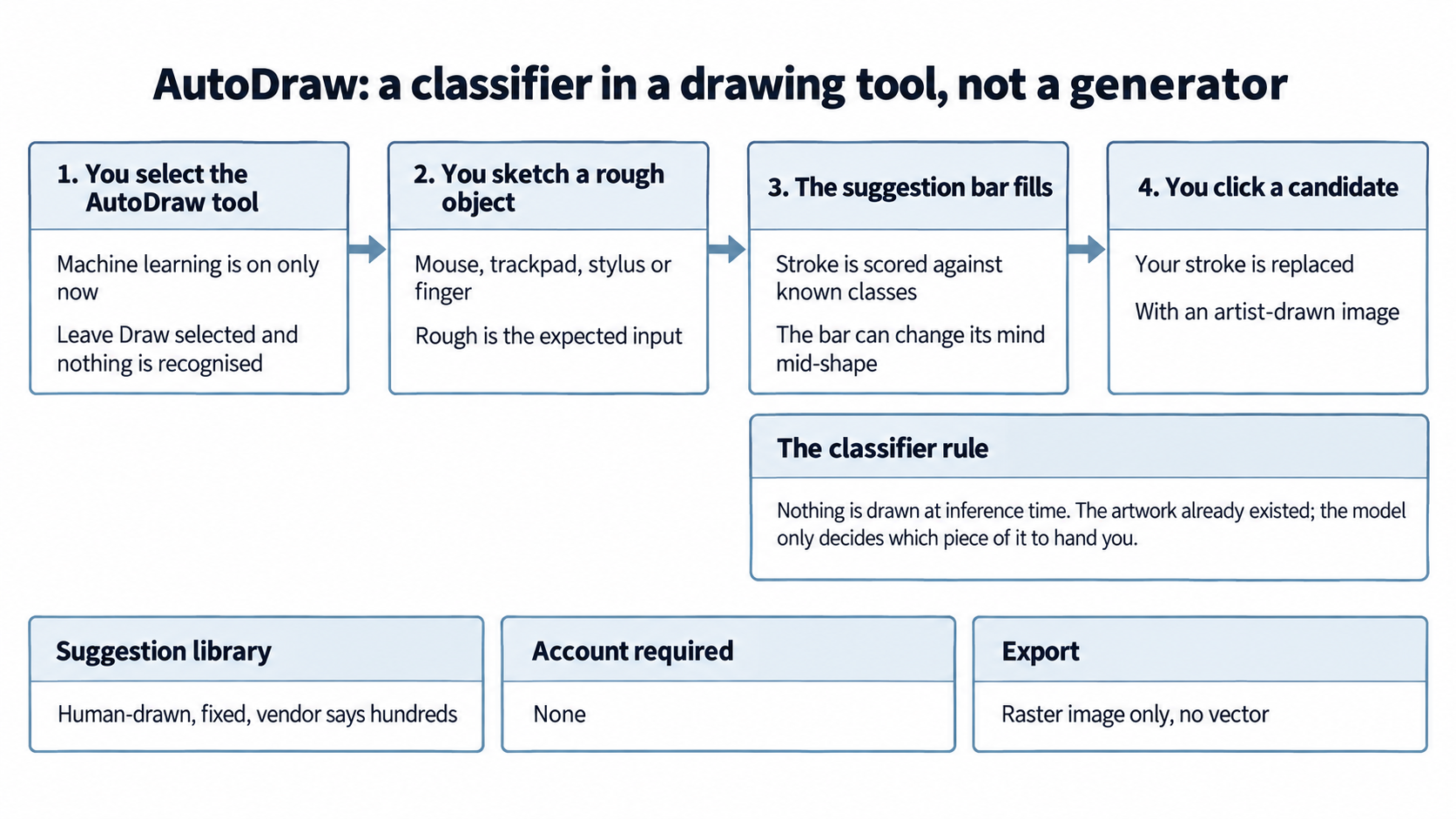
The pipeline above is the whole mechanism. The recognizer scores your in-progress stroke against a set of known object classes and offers the library drawing that matches; nothing is drawn at inference time.
The interface is a single canvas with a small toolbar: Select, Draw, Type, Fill, Shape, Undo, Delete, and AutoDraw. There is no menu bar, no settings panel, no project list and no sidebar. What you see when the page loads is the whole product.
The recognition loop has five steps.
You select the AutoDraw tool. This is the step that turns machine learning on. If you leave the Draw tool selected, you are using a plain drawing surface and the recognizer is not in the loop.
You sketch the thing you want with a mouse, a trackpad, a stylus or a finger. Rough is fine and rough is in fact the expected input. The tool is built for a wobbly rectangle, not a drafted one.
As you draw, a suggestion bar above the canvas fills with candidate objects. The bar updates as your stroke develops, which is why the tool can change its mind halfway through a shape.
You click the candidate you meant. Your stroke is replaced by the artist-drawn version at the same place on the canvas.
You style and place the result using the remaining tools: fill it with a colour, resize or move it with Select, type a label next to it with the Type tool, then export the canvas as an image file.
Under the surface, the recognizer is a classifier rather than a generative model. The vendor states on the Experiments page that the suggestion tool "uses the same technology used in QuickDraw, to guess what you're trying to draw." Quick, Draw! asked players to sketch a named object under a time limit while a neural network guessed, and it built a large set of labelled doodles as a by-product. AutoDraw uses the same recognition ability to score your in-progress stroke against a set of known object classes. When the top class matches a drawing in the library, you get that drawing as a suggestion. Nothing is being drawn at inference time. The artwork already existed; the model only decides which piece of it to hand you.
That mechanism explains the failure mode exactly. There is no suggestion for an object the classifier has no class for, and no suggestion for a subject the artists did not draw. When the recognizer misses, it usually misses confidently rather than gracefully. A reviewer sketching an elephant in 2017 was offered a koala, a frog or a hot dog instead. Those three are all in the library; the elephant was not in the top candidates. The tool has no way to say "I do not know this object", which is a design choice worth naming rather than a bug.
The library itself is a finite, curated set. The vendor names the contributing artists and studios on the launch post, including design and illustration contributors credited by name and by studio. The Experiments page states that the tool "can guess hundreds of drawings" and adds that the team looked forward to adding more over time. That second half of the sentence is the part to hold: it is stated as an intention, and no later vendor page measures how much was added or how large the set is now. For this review, treat the library as fixed at the scale the vendor described in 2017 and plan your use accordingly. Every aggregator page found while preparing this review repeats the phrase "hundreds", which suggests the number has not been publicly revised upward since.
What the tool does not explain anywhere on its own pages is the data path. Neither autodraw.com nor its Experiments listing states whether recognition happens inside your browser or on a Google server, what happens to the strokes you produce, or whether anything is retained after you close the tab. The canvas is not saved for you, which limits what could persist on your side, and the tool has no account and no login, which limits what could be joined to your identity. Beyond those two observations, the data handling question is governed by Google's general terms rather than by anything specific to this experiment, and that gap is the subject of the finding later in this review.
Getting Started with AutoDraw
Setup cost is zero and that is the point. Open autodraw.com in a browser. There is no install, no sign-in, no cookie wall described on the page, and no cost. On a phone or tablet the same address serves a version you draw on with your finger; on a laptop you draw with a mouse or trackpad; with a stylus you get the most control of the three.
A five-minute first session that actually teaches you the tool:
Draw a house. Select the AutoDraw tool first, then sketch the outline of a house with a roof and a door. Do not worry about straight lines. Watch the suggestion bar.
Click the suggestion that matches. Your sketch disappears and a clean house appears in its place.
Fill it. Switch to the Fill tool, pick a colour, click inside the house.
Add a word. Switch to Type, place a text box, and label it. This is how you turn a symbol into a diagram element.
Export. Leave the canvas with the export control and save the file. This is your only artifact. Nothing stays in the tool.
Then run the failure test deliberately, because the failure is the part you need to feel. Sketch something you know is not a common object: a specific machine, an unusual animal, a logo, a piece of equipment from your own workplace. Watch what the recognizer offers. In most cases you will either get no suggestion or a confident wrong one. That single exercise will save you more time than any tutorial, because it teaches you the boundary in your own hands rather than as a fact on a page.
Three practical rules for the first week:
Draw the simplest version of the object first. Complex strokes confuse a classifier trained on simple doodles. A bare outline of a cup beats a cup with a handle, a saucer and steam.
Undo rather than fight. If three attempts produce wrong suggestions, stop. The fourth attempt will not change what the library contains.
Export immediately. There is no save, no autosave and no session history described in the tool. Close the tab and the work is gone.
For a classroom or a workshop, the setup is identical, and one additional step is worth the two minutes it takes. Decide in advance what the learners are drawing, and give them a short list of objects you have already checked the tool can recognize. A room of twenty people each discovering the library's boundary at the same time produces twenty minutes of confusion; a room given a checked list produces twenty worksheets.
Real Workflows
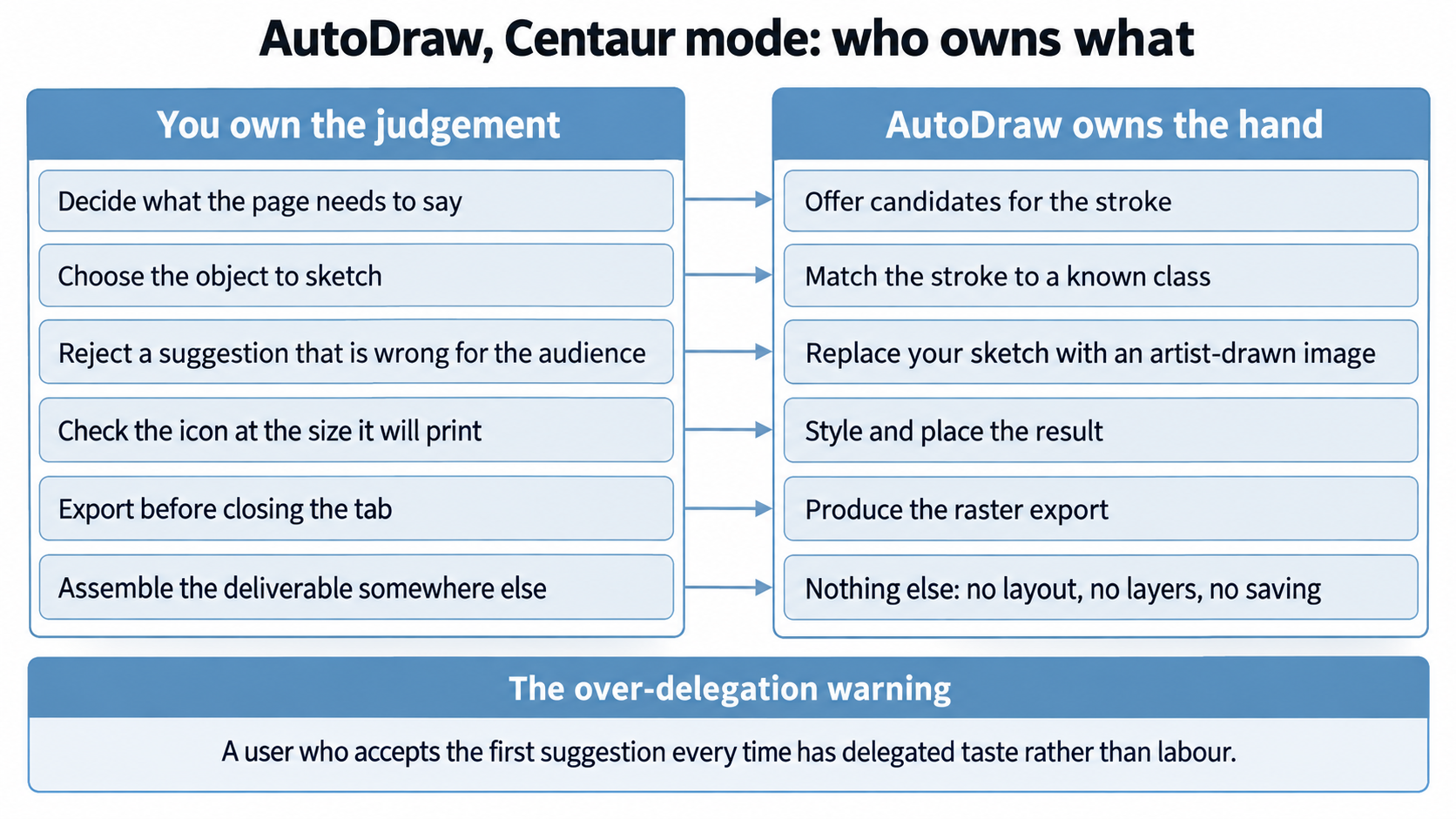
The split above is the working rule this review recommends. The tool owns the hand and the person owns the judgement, and the checklists in the workflows below are what keep the division where it belongs.
Each workflow below is written for the common case, with the verification step stated explicitly. The checklists are short on purpose. A verification step that takes longer than the task will not be performed.
Workflow A: a lecture slide set in twenty minutes
The situation: a faculty member has a deck to finish and needs the same eight symbols across it: a clock for time, a team for group work, a document for the reading, a lightbulb for the idea, an arrow for the sequence, a warning for the common error, a house for the home task, a check for the criterion.
Do this: open AutoDraw, draw each symbol in turn with the AutoDraw tool selected, click the suggestion, fill it with one colour, export each one, and place the files into the slide tool. Use one colour across all eight so the set reads as a set.
VERIFICATION CHECKLIST
☐ Verify: that each icon means the same thing to a viewer who has not heard you explain it, and that no icon contradicts the text beside it. A lightbulb is read as an idea in most contexts and as a hint in some; check the local reading before you ship it.
Workflow B: a language worksheet for young learners
The situation: a teacher needs ten labelled pictures for a vocabulary handout, and cannot draw.
Do this: sketch and swap each object one at a time. Sketch the simplest recognizable form. Add the word with the Type tool. Export each panel separately rather than trying to compose the whole worksheet on the AutoDraw canvas, because the canvas has no layout controls and no page size you can set.
VERIFICATION CHECKLIST
☐ Verify: that every word label is spelled correctly, and that each picture is unambiguous without the label. If a picture only works because the label explains it, the picture has failed and you should pick a different object.
Workflow C: process symbols for an operations one-pager
The situation: someone is documenting a procedure and needs consistent symbols for start, step, decision, document, and end.
Do this: draw each symbol, accept the suggestion, standardize the colour, and export. Place them in the document tool that owns the one-pager and rebuild the process there, where you have alignment and text control.
VERIFICATION CHECKLIST
☐ Verify: that the symbols you chose are distinguishable from each other at the size they will actually print, and that a reader who has never seen the procedure can follow the flow using the symbols alone.
Workflow D: rapid icon study in a design class
The situation: a UX class is asked to produce a set of navigation icons in one session and then critique them.
Do this: give the class thirty minutes with the tool, ask each student to produce the same six icons, then switch off the tool and have them attempt two of the six by hand. The comparison is the assignment.
VERIFICATION CHECKLIST
☐ Verify: that each student can state, in one sentence per icon, which decisions the tool made for them. A student who cannot name the tool's decisions did not do the exercise.
Workflow E: an AI literacy demonstration
The situation: a session needs a live, hands-on demonstration of how a classifier behaves, without sending anyone to a code environment.
Do this: give the room one object it can draw well and one it cannot. Have three people draw the same difficult object and record what the recognizer offers each time. Collect the offers on the board.
VERIFICATION CHECKLIST
☐ Verify: that the group can state, from what they observed, why the machine failed, and that nobody leaves thinking the tool "did not understand" in a human sense. The correct description is that no candidate class scored high enough, or that the wrong class scored highest. That distinction is the learning outcome.
There is one more workflow that this review deliberately does not recommend, and it belongs here because it is the one people attempt first. Do not use AutoDraw to build a finished graphic that contains several elements and a layout. The canvas has no layers, no alignment, no grouping and no page size, and a finished poster assembled on it will show it. Sketch the parts in AutoDraw, export them, and assemble in a tool built for assembly.
Strengths, Limits, and AI Imposture Risk
Strengths
It removes the skill barrier without removing the person. The task you cannot do is hand-to-symbol translation. The task you keep is deciding what the page needs to say. That division is clean, and it is the reason the tool survived past its launch year.
Setup cost is genuinely zero. No install, no account, no payment, no permission request. A user who has never opened the tool is drawing in under ten seconds. Almost nothing else in this category can claim that, and for institutional use the absence of an account requirement removes a data-protection conversation entirely.
The output style is consistent. Because the library was drawn by a small group of named artists and studios working to one brief, icons taken from it sit together on a page without fighting. This is the specific advantage over image search, where ten results produce ten visual styles.
The failure is visible, not hidden. When the recognizer is wrong you see a wrong picture immediately, before it reaches your document. A tool whose errors announce themselves is a much safer addition to a workflow than one whose errors read as fluent prose.
It works on every device the vendor lists, from a phone in a corridor to a desktop in a lab, through the browser alone. In classroom settings where devices differ by student, that portability matters more than any feature.
It is a live demonstration of machine learning that needs no code and no login, which makes it usable in a session about AI for an audience that will never open a notebook.
Limits
The first limit is the one this review asks the reader to weigh against the status badge. AutoDraw has had no significant product update since 2017, and it publishes no support commitment, no changelog and no roadmap. The vendor's own pages still carry 2017 wording, including the sentence that the team "look[s] forward to adding more drawings over time." Nine years of that sentence with no measured change to the library is the honest reading.
Why that is a limit rather than an emergency: the tool is free, it runs in a browser, and nothing about it touches accounts, credentials or institutional data. The cost of the tool disappearing is therefore bounded. It is a link that stops working, not a dependency that strands work. That bounded downside is deliberate in the rating, and it is also why the review still assigns the Active badge while stating the stagnation plainly: the tool is a current link to a working capability, and it is not recommended for anything that requires continuity.
Second, the library is finite and does not grow. Anything outside its set of object classes has no path in this tool. The vendor's own wording in 2017 was that the tool "can guess hundreds of drawings." Preparation for this review surfaced no vendor page that revises that figure upward, and independent pages repeat the same word rather than a number.
Third, the export and layout ceiling is low. Independent reviewers report image export only, with no vector output; the tool publishes no vector export control on its own page. There is no page size, no layer, no alignment, no grouping and no measurement. Anything with a layout in it belongs in a different tool.
Fourth, nothing is saved. There is no project, no autosave and no session history described anywhere in the tool or its help material. This is a limit and a safety feature at once, and it means the workflow rule from the Getting Started checklist is not optional: export immediately.
Fifth, the licence position for the artist library is not published on the tool's own pages. For casual classroom and internal use this is unlikely to matter. For anything distributed commercially or claimed as original work, the question is live and unanswered, and the next section examines it.
Sixth, and connected to the fifth: the tool publishes no purpose-built privacy notice. Neither the tool page nor its Experiments listing states whether recognition happens in the browser or on a server, what is retained, or for how long. Google's general terms and privacy policy apply instead, and what they say about a signed-out user is examined in the next section.
AI Imposture Risk
Trap | Rating | Evidence |
Time Illusion | Low | There is no prompting step. The user makes a stroke they would have made anyway, and the candidates appear on the same surface. Verification is a glance: the suggestion is either the object you meant or it is not. One independent reviewer who used the tool reports the engine "reacted fast" with "no lag between finishing a stroke and seeing options appear." Where time is lost, it is lost visibly and the user can stop at once. |
Quantity Illusion | Low | The tool has no volume channel. It produces one drawing per accepted suggestion, and the artifact is a picture the user inspects before use. There is no stream of plausible text to skim and no summary that could be believed without reading, so the trap that catches generated prose does not apply here. |
Skill Illusion | Medium | This is the trap with real teeth. The tool produces artist-quality illustration for a user who cannot draw, and the framework's own test for the Medium rating is met: the tool "can be used productively without full understanding, but the user is aware of the gap." The gap is visible, because the drawing on screen is obviously not the user's own hand. What stops this from reaching High is that AutoDraw replaces a skill the user never had, rather than eroding a skill they once held, and that its errors are self-announcing. What keeps it above Low is a genuine dependency pattern: a user who always sketches through AutoDraw never develops visual judgement about icon appropriateness, and will not notice when a symbol is wrong for its audience. That is exactly the failure the workflow checklists above are written to catch. |
Overall AI Imposture Risk: Medium, on the framework rule that one Medium trap produces Medium overall. The mitigation is not technical. It is the habit of asking what the icon will be read as by a viewer who has not heard you explain it.
Section 7c: the vendor's notice commitment has no delivery channel for this tool, stated plainly
This section records a finding from the vendor's own contract terms read against the vendor's own product description. It changes no score, and the reason it changes no score is stated at the close.
The finding. Google's Terms of Service, in the section titled "Develop, improve, and update Google services", states the following about changes to services, verbatim:
"As part of the continual evolution of our digital content, services, and goods, we make modifications such as adding or removing features and functionalities, increasing or decreasing usage limits, and offering new digital content or services or discontinuing old ones."
The same section then makes a commitment about notice, verbatim:
"If a modification negatively affects your ability to access or use our digital content or services, or if we stop offering a service altogether, we'll provide you with reasonable advance notice by email"
Read that against what AutoDraw's own description tells a user. The Experiments listing for AutoDraw says the tool is free in the sense that there is "nothing to download" and "Nothing to pay for", and the tool operates without an account. A visitor can use it indefinitely without providing an email address to anything connected to the tool. The practical consequence is that the notice commitment quoted above has no delivery channel for a user of this tool. There is no account, no subscription and no contact field, so there is no address at which the advance notice could arrive. The commitment exists in the contract and has nothing to attach to in this product.
A second element of the same finding sits in the vendor's privacy documentation. Google's Privacy Policy states, verbatim:
"Google also collects and uses data that is not associated with your account. For example, when you're not signed in to a Google Account, we store the information we collect with unique identifiers tied to the browser, application, or device you're using."
That answers, at the level of the general policy, the data-path question that the tool's own pages leave open. Drawing in AutoDraw without signing in does not make the session anonymous at the level of the vendor's data systems. The identifier is tied to the browser or device rather than to a named person, and the tool itself neither asks for nor stores a name. The distinction between "not identified to us by name" and "not associated with any identifier" is the operative one, and the vendor's own text draws it.
What is allegation and what is finding. The finding is the textual gap: a notice commitment in the general terms with no channel in this product, and a signed-out data practice described in general terms with no tool-specific notice anywhere on the product's pages. What is not alleged here is any misuse of data. Nothing found in preparation for this review suggests that AutoDraw strokes are stored, sold, shared, or used to train anything, and no source found makes that claim. The absence of a tool-specific notice is not evidence of a bad practice; it is evidence that the practice is not described where a user would look.
No score changed, and here is why. The Imposture Risk ratings in the previous section measure whether a user is misled about their own time, output or skill. This finding does not touch any of the three. The Time and Quantity ratings rest on the tool's visible behaviour, which the terms do not alter. The Skill Illusion rating already sits at Medium for a different and independent reason. The CI-First Benefit dimensions measure the value of a working tool, and a notice gap does not reduce the value of a house icon. The status badge already states the stagnation plainly, so this finding adds a reason rather than changing a verdict: a user should expect no advance notice if the tool is withdrawn, and should plan accordingly. That is a continuity fact, not a scoring fact.
What this section does not do. It does not claim a legal defect, and it takes no position on whether the notice commitment is enforceable, void, or simply inapplicable to a free experiment with no contractual relationship in the ordinary sense. It does not claim that any data is mishandled. It does not assert what Google intends for this tool's future, because no statement about that was found, and inventing one would be a worse error than the gap it describes. It records what the vendor's own documents say, quotes them, and leaves the reader to draw the continuity conclusion that the rest of this review already recommends.
U365 Co-Intelligence Rating
This rating is the review's judgement of the value a realistic user gets, net of the effort the tool imposes, in the common case rather than the best case. It is conservative on Skill, because the tool does the drawing and the person keeps only the decision, and the framework asks for a lower score where the capability that appears on screen is not a capability the user has acquired.
CI-First Benefit Score
Dimension | Score | Rationale |
Time | 7 | For an object in the library, the path from need to finished icon is a few strokes and one click, with no account, no search and no download step. One independent reviewer who used the tool reports the suggestion bar appearing immediately and "no lag between finishing a stroke and seeing options appear". The score is held below 8 because the common case includes objects the recognizer does not know, and those attempts are wasted time the user cannot recover. The net is still strongly positive against the alternative of searching for an icon and checking its licence |
Quantity | 5 | The tool increases the number of visuals a non-designer will actually produce, because each one costs a minute instead of a decision. A teacher who would have shipped a text-only worksheet ships one with pictures. The score stops at the middle because volume scales only up to the size of the library and only across the class of simple objects, and the tool offers no way to produce a hundred images of anything |
Quality | 5 | What the tool produces for a recognized object is clean, professionally drawn and consistent with the rest of the library, which is a real quality gain over a hand sketch or a random search result. It is not a gain over a design tool, and it does not raise the quality ceiling of anything the user makes outside the icon itself. The output is also unverifiable as to licence, which caps the score rather than the appearance |
Skill | 3 | Held deliberately low. The user does not learn to draw, does not learn layout, and does not learn to judge craft, because the tool supplies the craft. Two small gains justify 3 rather than 2: the user does develop judgement about which icon an audience will read correctly, and the tool's confident failures are a genuine lesson about how classifier confidence differs from understanding. Neither is a durable production skill |
Average: (7 + 5 + 5 + 3) / 4 = 5.0, which places AutoDraw in the Positive band of the CI-First Benefit Score.
CI-First Profile
Primary profile: AI as Co-Worker and Assistant. The tool handles one execution task, turning your intent into a finished symbol, and you direct and review. That is why Time carries the highest dimension score and Skill the lowest.
Secondary profile: AI as Challenger and Devil's Advocate, and this is not a stretch. In a classroom, the tool's most instructive behaviour is its confident wrong answer. It challenges the user's assumption that a machine which recognizes shapes therefore understands them, which is exactly the challenger function, exercised accidentally by the tool and deliberately by a good teacher.
Humics Protection
Dimension | Score | Evidence |
Creativity | 0 | Two directions, roughly equal. Positive: the tool removes the technical barrier that stops non-designers from putting an idea into visual form, and a worksheet that exists is more creative than one that does not. Negative: it replaces personal visual expression with a closed set of pre-drawn symbols, and a technology writer reviewing it in 2017 argued that it "collapses stylistic differences back into recognizable cliches". A tool that makes your idea visible but not distinctive does not move this score either way |
Critical Thinking | +1 | The tool's errors are visible and instructive rather than hidden. A wrong suggestion is a wrong picture on screen, and the user must reject it, which is an act of judgement the tool forces on every use. The failure mode is also a live demonstration of the difference between pattern matching and understanding, which a class can observe and discuss in one session on a free page. The gain is modest and it is not automatic, which is why this is +1 rather than +2 |
Social Authenticity | 0 | Nothing in the tool speaks in your voice or stands in for a human relationship, so the main risk the dimension measures is absent. The tool also discloses what it is: the suggestion control is labelled AutoDraw, and the library drawings are credited to named artists by the vendor. There is a mild authenticity question if a user presents a library drawing as their own handiwork, which is a disclosure habit rather than a property of the product. Net zero |
Humics Protection Score: +1, which is the Humics-Neutral band.
AI Imposture Risk
Time Illusion Low, Quantity Illusion Low, Skill Illusion Medium, supported by the evidence set out in the strengths and limits section. Overall AI Imposture Risk: Medium, on the framework rule that one Medium trap produces a Medium overall rating.
Collaboration Mode
Centaur. The rule is direct: an overall Imposture Risk of Medium or High places the tool in Centaur mode, because a clear division of labour is the safer arrangement. The division here is unusually clean and worth stating as a working rule. The tool owns the hand: it produces the line. You own the judgement: what the page needs to say, which of the offered icons a viewer will read correctly, whether the source of the artwork matters for this piece of work, and where the file goes. Do not let the tool own a decision. It has no information about your audience, and it cannot tell whether its answer is right.
Framework v1.2 clause note
Clause 5.2.3-a, agent-authored procedural memory: Null. AutoDraw writes no skills, no memory store, no standing instructions and no profile of the user. It has no account and no persistence at all, so nothing it produces survives the tab closing. The clause's Skill Illusion floor does not attach, because the floor is written for a tool that creates or revises the user's procedural memory on their behalf, and this tool creates nothing on anyone's behalf. The Skill Illusion rating of Medium in this review stands on independent grounds, stated in the imposture table, and not as a consequence of this clause. A null is a finding, and the finding is that the tool has no memory surface to govern.
Clause 4.2-a, agent-mediated conversation: Null. There is no conversational agent in AutoDraw, no text generated on the user's behalf, and no channel in which a machine speaks as a person. The one thing the tool does produce is a suggestion of an existing artwork, and both halves of that are disclosed: the control that produces suggestions is labelled AutoDraw, and the vendor credits the human artists who drew the library. Nothing is presented as the user's own voice. The clause would attach to a workflow in which exported icons are presented as a student's original hand-drawn work, but that is a disclosure failure inside a human workflow rather than a property of the tool, and the tool itself gives the user the information needed to disclose correctly.
Clause 7.5, team-level rooms: Null, and structurally so. AutoDraw has no rooms, no shared canvas, no comments, no presence and no other agents. It is a single-user surface with no collaboration feature of any kind, which is also recorded as a limit in the strengths and limits section. There is no channel in which more than one agent could act, so the Centaur requirement the clause carries has nothing to attach to. The collaboration mode is Centaur for the separate reason given above.
Superhuman usage guidance
Invite the tool when you know what the symbol should look like, it is an ordinary object, and the cost of the alternative is disproportionate. Invite it in the classroom specifically for the AI literacy demonstration, where its failures teach more than its successes. Invite it whenever the absence of an account requirement is itself the deciding factor.
Keep the tool out when the work is identity-bearing, licensed, published at scale, or depends on layout. Keep it out of any deliverable whose artwork rights you must be able to state, which includes commercial client work and any institutional asset that will be distributed externally under a claim of originality. Keep it out of the final assembly step of anything.
Over-delegation warning. The specific trap for this tool is not doing less work. It is deciding less. A user who accepts the first suggestion for every symbol, every time, has delegated taste rather than labour, and will keep doing so without noticing, because the output is always tidy. The counter-measure is procedural and small: when more than one suggestion matches, choose by asking which one a viewer who has not heard you explain will read correctly, and say that reason out loud once per session. That single habit keeps the judgement on the human side of the Centaur line, and it is the whole mitigation for the Medium imposture rating.
What Users Say
The evidence base for user opinion on AutoDraw is unusual in one respect and it should be stated before any of it is used. AutoDraw has no verified listing on the major software review platforms. Preparation for this review found no product page for it on G2, Capterra, GetApp or Trustpilot. That is not a gap in the research; it is a fact about the tool. A free Google experiment with no sales motion has no reason to appear on platforms built for commercial software procurement, and its absence means there is no aggregated score, no verified review count and no enterprise feedback to cite. Any figure presented elsewhere as an AutoDraw review count should be treated with suspicion for the reason given next.
There is one figure circulating and it does not survive inspection. A directory listing for AutoDraw displays a score of 4.5 alongside the line "Based on 3,200 reviews". The same page's visible review entries are three in number, attributed to three named individuals and dated between late 2025 and early 2026, and their text is generic praise that does not mention anything specific about drawing, recognition or the icon library. One of them refers to "the subscription", and AutoDraw has no subscription. Read together, the displayed count and the displayed reviews contradict each other, and the review text describes a paid product. The honest conclusion is that the count is not a measurement of AutoDraw users. No usable aggregate rating for this tool was found, and this review states none.
What is left is qualitative and it comes from four kinds of source, each with its own bias.
Independent hands-on reviews. One 2026 review written by a reviewer who used the tool reports that the suggestion bar "popped up across the top offering a handful of shape options based on my scribble", that selecting one turned the sketch into "a clean icon in one click", and that the engine handled a basic geometric shape well. The same reviewer records the limits plainly: no way to import a reference photograph to trace, image export only with no vector output, and a toolbar that "felt a little tight" on a small screen. This is the most useful class of evidence found, because it describes behaviour rather than enthusiasm.
Vendor-side framing repeated by aggregators. Several directory pages repeat the vendor's own claims almost verbatim, including the word "hundreds" for the library. These pages add no independent measurement, and one of them presents the tool under an "Image Generation" category, which is the category error the scope section of this review exists to prevent.
Education practitioners, 2017 onward. The strongest and most specific adoption evidence is from teachers. A teacher-focused write-up from April 2017 lists what AutoDraw is good for in a classroom: sketch notes, infographics, illustrating a story, creating a scene, desktop publishing for a flyer or poster, and creative drawing. The same write-up lists cons that have not changed in nine years: no ability to change the order of objects, no option to save multiple drawings for later editing, and no collaboration. It also makes the pedagogical point that matters most, that the tool will be "especially helpful for younger students who consider themselves artistically challenged."
Press critique from 2017 that still reads as the sharpest objection. A technology writer for a major publication argued that the tool "collapses stylistic differences back into recognizable cliches", and quoted a computer-science professor making a related point: "There's no real intelligence. It's very sophisticated pattern-matching." The same article records the author sketching an elephant and being offered a koala, a frog or a hot dog. That is the most honest description of the tool's ceiling found anywhere, and it came from someone using it, not from a competitor.
The synthesis. Users who describe what the tool does report that it does that thing well, immediately, and for free. Users who describe what it cannot do report the same four limits every time: no layers or ordering, no saving, no collaboration, no vector output. Nobody with hands-on experience reported a quality failure in what the tool actually produces for objects it recognizes. The disagreement in the record is not about whether AutoDraw works. It is about whether a tool that hands you someone else's drawing is a creative aid or a creative shortcut, and that disagreement is a values question the tool does not settle.
Comparison and Alternatives
Three alternatives cover the realistic decision. Prices are stated only where a source fetched for this review stated them, and no price figure is quoted here because no vendor pricing page was consulted for the alternatives.
AutoDraw | Canva | Google Drawings | A text-to-image generator | |
What it makes | Icons and simple illustrations from a fixed artist library | Full designs: posters, social posts, decks, from templates plus assets | Diagrams, shapes, text, layout on a canvas | Novel images from a written prompt |
Cost position | Free, no account | Freemium, account required | Free with a Google account | Paid or credit-based, account required |
Skill needed | None | Low | Low to moderate | Prompt skill, and judgement to evaluate output |
Sketch recognition | Yes, this is the whole feature | No | No | No; the input is text |
Layout and type control | None to speak of | Strong | Moderate | None; output is an image |
Vector export | Not published | Available in the paid tiers | Yes, drawings are vector | No |
Collaboration | None | Strong | Sharing through the account | None |
Saves your work | No | Yes | Yes, in the account | Yes, in the account |
Teaching value about AI | High as a live classifier demonstration | Low | None | Moderate, and of a different kind |
Choose Canva when the deliverable is a finished graphic with layout, type and a brand. It is the correct default for anything institutional that will be published.
Choose Google Drawings when the artifact is a diagram or a process sheet and you need alignment, exact placement and a vector result. It has no recognizer, and it does not need one for that job.
Choose a text-to-image generator when the image you need does not exist in any library and you can describe it in words. Be aware of what you have taken on: you must now judge whether the generated image is accurate and appropriate, which is a verification task AutoDraw never imposes.
Choose AutoDraw in exactly one situation, and it is the situation this review recommends it for. You know what the symbol should look like, it is an ordinary object, and you need it in the next two minutes without opening an account, learning a tool, or paying. Nothing else in this table beats it on that task, and no tool in this table is worse than it at everything else.
Verdict and Next Steps
The verdict. AutoDraw does one small job extremely well and does not pretend to do any other. It is free, instant, accountless and available on every device the vendor lists. It has also had no significant update since 2017, publishes no support commitment, and offers no continuity guarantee beyond the fact that its own contract terms cannot reach a user with no account. Use it as a two-minute symbol dispenser inside a workflow that lives somewhere else, and it will never cost you anything but the time you would have spent searching for an icon.
Do not treat it as a design tool, do not build a deliverable that lives only inside it, and do not ask it for an image that is not already in its library. The badge on this review is Active because the capability is live and the downside of losing it is bounded. The Limits section carries the rest of that judgement, and the reading is that a small tool with a frozen library and no support promise is safe precisely because nothing depends on it.
Next steps, in the order to do them.
Add autodraw.com to the browser bookmarks of anyone who builds slides, worksheets or one-pagers. The value of this tool is availability at the moment of need, and a tool nobody remembers does nothing.
Run the failure test in the Getting Started checklist once, yourself, before recommending the tool to anyone else. You cannot explain the boundary credibly until you have hit it.
Tell every new user the same two sentences: the library is fixed, and export immediately. Those two sentences prevent nearly all of the dissatisfaction recorded in the wild.
Put the export step into any team process that uses the tool, so that no deliverable depends on a canvas that is not saved anywhere.
Keep a second route for icons, chosen in advance. Any design tool you already have will do. The point is that nobody discovers the need in the middle of a deadline.
U.Copilot Integration
U.Copilot is the front door to the U365 tool library, available at https://www.university-365.com/ucopilot. Use it for the decision this tool forces rather than for the tool itself, because the question AutoDraw raises is not how to draw a symbol but whether a symbol is the right answer and whose judgement decided it.
What to ask U.Copilot to do. Describe the page or the session and the reader, and ask it to name which visual decisions the material actually needs and which of them are symbol decisions. Ask it to produce the object list before anyone opens the tool, so the class draws objects the library can serve rather than discovering the boundary twenty times over. Ask it to write the audience check, the one question a person must answer before accepting a suggestion: will a viewer who has not heard you explain read this symbol the way you intend. Ask it to set the review rule for a set of symbols rather than for one symbol, because a set that reads as a set is the outcome the tool is good for and a mixed set is the outcome it produces when nobody checks. Then ask it to place the object list, the accepted set and the audience-check answers in your LIPS Digital Second Brain, so the record of what was decided survives the tab closing, which is the only place it can survive because the tool keeps nothing.
U.Copilot prompt example.
I am producing [slides, a worksheet, an operations one-pager] for [audience] using AutoDraw, which offers a fixed library of human-drawn symbols and saves nothing. Produce the object list first, naming each object and what it stands for on the page, and flag any object a fixed symbol library is unlikely to hold. Then write the audience check as a single question a person must answer before accepting a suggestion. Then write the review rule for the set as a set, naming what makes two symbols inconsistent and who approves the set. Then place the object list, the audience-check answers and the approval in my LIPS Digital Second Brain under [project], and tell me which decisions in this workflow must be mine.
SL-OS Integration
LIPS Digital Second Brain: the object list, the accepted symbol set, the audience-check answers and the name of the person who approved the set belong in your LIPS under the project. AutoDraw holds nothing: there is no account, no project store and no session history, so an export is the only artefact that survives the tab closing and everything that explains the export has to live somewhere you own. LIPS is where it lives, which is what makes a set of symbols reproducible rather than remembered.
ULM routines: primarily Quality of Life, and Career and Finance. The gain is the two minutes a symbol no longer costs, and the habit worth building is the small one the review names: asking what a viewer will read before the symbol ships. That is a Quality of Life routine because it removes a recurring low-grade interruption rather than a project. The Career and Finance connection is narrower and it is the honest one: the tool is free, so the only thing it can teach this domain is how to reason about a tool that costs nothing and promises no support, which is a real commercial judgement and a small one. Weak fit for Body and Health, Spirit and Mind and Social and Love Relationships: nothing here touches them.
My Successful Life: put the audience check on the moment a symbol is accepted rather than on a calendar date, because the decision is instantaneous and a review scheduled later will never run. The trigger to watch is the second time you accept a suggestion without asking the audience question. The first acceptance is a decision; the tenth is a habit, and the habit is the one the review's over-delegation warning is written against.
The 5M2S reading
Read through U365's 5M2S method, AutoDraw sits in a narrow band. It supports the sense-making and structuring work of putting a symbol on a page so that an audience can follow an idea. It contributes nothing to the strategy, systems or scaling work of building a learning product, and it should never be presented as an AI capability in an institutional deliverable. Its real institutional value is as a teaching exhibit: a live classifier that succeeds, fails and fails confidently in front of a room, on a free page, with no account and no setup.
Status and Last Tested
Status: Active Last tested: 2026-09-27 Re-check: trigger-based, with a six-month ceiling (next scheduled review 2027-03-27)
What was checked:
Check | Result |
The tool's own page is served at its published address | Confirmed on 2026-09-27 |
The vendor's description of the tool is still published | Confirmed on 2026-09-27, on the Experiments listing dated May 2017 |
The launch post is still published | Confirmed on 2026-09-27, dated 11 April 2017 |
The tool's interface still presents the tool set described in the snapshot | Confirmed: Draw, Type, Fill, Shape, Undo, Delete and AutoDraw are all present in the interface as served |
The embedded video reference resolves | Confirmed on 2026-09-27 |
The vendor has published a newer description, a changelog or a roadmap | No such page was found |
The vendor has published a support commitment for this experiment | No such commitment was found |
A vendor page states the current size of the suggestion library | No such figure was found; the vendor's published wording remains "hundreds" |
A verified listing exists on a major review platform | No such listing was found |
What has changed since the previous review cycle: nothing was observed to have changed. That is itself the finding. The tool is served as it was, which is exactly what an unmaintained experiment looks like when it still works.
Migration Path
AutoDraw is not Retired, Deprecated or Risky, so this section is not a rescue plan. It is the exit path that the Active badge still warrants, for one reason: the tool publishes no support commitment, so a user who depends on it should know where to go before the day they need to go there.
If the tool goes offline, or the recognizer stops working:
Need | First move | Second move |
A symbol in the next ten minutes | Search an icon library that publishes its licence terms, or use the icon set built into a design tool you already have | Use the shape and text tools in a document editor to build the symbol from primitives; it is slower and it is sufficient |
A symbol used in a live classroom demo | Draw it by hand on the board and use the moment to make the point about machine failure | Replace the demonstration with a different classifier example if one is available to you |
A set of icons across a recurring deliverable | Replace them once, in the tool that owns the deliverable, and stop depending on an external page | Standardize the replacement set so future updates happen in one place |
The AI literacy demonstration this tool supports | Describe how a classifier scores a stroke against known classes, using examples you have collected | Any tool that shows a confidence score will substitute; the lesson is about confidence, not about drawing |
What to do before you need the path. Open each artifact you have built with AutoDraw and confirm that the finished file exists outside the tool. For anything produced under the recommended workflow, it already does, because the workflow exports every icon and assembles elsewhere. That single design choice is the whole migration plan: an institutional use of AutoDraw that keeps its files elsewhere has nothing to migrate.
What not to do. Do not respond to a tool outage by building an internal replacement. The tool is a symbol dispenser and the alternatives are numerous, cheap and already installed on the machines around you.
U365's Recommendations to Learn More
Official learning resources
The tool itself, which is the only place where the product exists. There is no separate app, no mobile build and no downloadable version: https://www.autodraw.com/
The Experiments with Google listing, dated May 2017, which is the closest thing to documentation and carries the vendor's own wording about the recognition technology and the library: https://experiments.withgoogle.com/autodraw
The launch post on the Google blog, dated 11 April 2017, the only place where the tool's intent and the artists behind the library are named: https://blog.google/innovation-and-ai/products/fast-drawing-everyone/
Video tutorials and channels
There is no tutorial series for this tool, no vendor channel dedicated to it and no walkthrough published by a third party that a reader can rely on. The launch video is the only video documentation that exists, and it is the maker's own demonstration of the interaction.
The launch video, which demonstrates the whole loop of drawing a rough shape and accepting a suggestion. It is the fastest way to understand the tool before opening the page.
AutoDraw: Fast Drawing for Everyone by Google for Developers (Published Apr 11, 2017, 1:44)

The image above is the still frame attached to the launch video. It shows the part of the experience that matters: a rough sketch on the canvas and the suggestion rail above it.
What to read first, in order. Watch the video, which takes two minutes and shows the whole interaction. Then open the tool and run the failure test in the getting started checklist. Then read the Experiments listing for the vendor's own wording about the library and the technology. The launch post is worth reading for one reason only: it names the artists, which tells you something about what the library is.
What to do with a class. Give the group the tool for twenty minutes with no instruction beyond the object list, then spend fifteen minutes collecting the misses on a board. The discussion that follows is about confidence and pattern matching, and it works with any audience, including one with no technical background at all.
Written tutorials and deep-dive articles
An independent review written by someone who used the tool, reporting the suggestion bar appearing above the scribble, the one-click replacement and the raster-only export: https://websites2know.com/autodraw-review
A second independent review of the same year, covering the recognition behaviour and the export ceiling: https://visionstack.visionsparksolutions.com/reviews/autodraw
A classroom write-up from April 2017 listing what the tool is good for in teaching and the three cons that have not changed since: https://gsouto-digitalteacher.blogspot.com/2017/04/schools-apps-let-your-students-use.html
The 2017 critique in The Atlantic, which remains the sharpest objection on the record and is quoted in the user evidence section: https://www.theatlantic.com/technology/archive/2017/04/google-is-using-artificial-intelligence-for-clip-art/522765/
Community and social
There is no AutoDraw account to follow, no vendor newsletter and no release feed. A reader who wants to know whether the tool still works should open it, because no channel exists that will tell them.
Resources on AutoDraw
There is no dedicated support property for this tool. The recommendation below is therefore short by necessity rather than by choice, and that is itself information a reader should have: if you need help with AutoDraw, there is no help desk, no forum, no changelog and no documentation site to consult.
Dedicated AutoDraw channels
Channel | What it is | Why it matters |
autodraw.com | The tool itself | The only place where the product exists |
The Experiments listing | The vendor's own description of the experiment, dated May 2017 | The closest thing to documentation, including the recognition technology and the library description |
The launch post on the Google blog, 11 April 2017 | The vendor's account of why the tool was built and who drew the library | The only place where the tool's intent and its artists are named |
The launch video | A short demonstration of the tool by its maker | The fastest way to understand the interaction before opening the page |
Resources on X
The accounts below are a watchlist rather than a support channel. A change to the experiment, or a decision about the AI Experiments collection, would surface on one of them before it appeared anywhere on the tool's own page.
Dedicated X channels
Google (@Google), the account that announced the tool on 11 April 2017 with the line that it "uses #MachineLearning to help you draw fast": https://x.com/google
Google for Developers (@googledevs), which carried the same launch as an AI experiment announcement: https://x.com/googledevs
Google Labs (@GoogleLabs), which carries Google's current creative-tool announcements: https://x.com/GoogleLabs
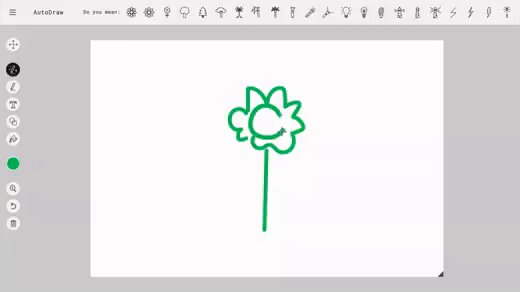
CI-First Evaluation Summary Card
Field | Value |
Tool | AutoDraw |
Vendor | Google Creative Lab |
Category | Browser drawing tool with machine-learning sketch recognition |
Status | Active |
Last tested | 2026-09-27 |
Re-check | trigger-based, with a six-month ceiling |
Price | Free. No account, no download, no payment |
CI-First Profile | Primary: Co-Worker and Assistant. Secondary: Challenger and Devil's Advocate in classroom use |
Collaboration Mode | Centaur |
Time Benefit | 7 |
Quantity Benefit | 5 |
Quality Benefit | 5 |
Skill Benefit | 3 |
CI-First Benefit Score | 5.0 |
Band | Positive |
Humics Protection | Creativity 0, Critical Thinking +1, Social Authenticity 0 |
Humics Badge | Humics-Neutral (+1) |
AI Imposture Risk | Medium, made up of Time Low, Quantity Low, Skill Medium |
Clause 5.2.3-a | Null. No procedural memory is written |
Clause 4.2-a | Null. No conversational surface and nothing presented in the user's voice |
Clause 7.5 | Null, structurally. No rooms and no second agent |
Best for | Fast, free symbols and icons for slides, worksheets, one-pagers and classroom materials |
Not for | Layout, photo work, novel illustration, licensed assets, anything requiring continuity |
The one rule | Sketch it, accept it, style it, export it, and assemble the deliverable somewhere else |
Glossary
AutoDraw. A free browser drawing tool by Google Creative Lab, first published in April 2017, in which a machine-learning recognizer offers professionally drawn icons that replace the user's rough sketch.
AI Experiment. A Google Creative Lab project published to demonstrate a machine-learning capability rather than to serve as a supported commercial product. AutoDraw is published under this label, which is why it has no support commitment, no changelog and no roadmap.
Classifier. A system that assigns an input to one of a set of known categories. AutoDraw's recognizer is a classifier: it scores your in-progress stroke against known object classes rather than generating a new image. The distinction matters because a classifier can only ever answer with something it already knows.
Suggestion bar. The rail above the canvas where the recognizer's candidate drawings appear as you sketch. Selecting one replaces your stroke with the artist-drawn version.
Library. The curated set of drawings by named artists and studios that the recognizer can offer. The vendor describes its size as "hundreds of drawings". The library is finite and, on the evidence gathered for this review, has not grown since the tool launched.
Quick, Draw! The earlier Google experiment in which players sketched a named object under a time limit while a neural network guessed. AutoDraw's recognizer uses the same technology, and Quick, Draw! produced the labelled doodle data behind it.
CI-First Benefit Score. The average of four dimension scores, each 0 to 10, measuring the benefit a realistic user obtains: Time, Quantity, Quality and Knowledge and Skill. Bands: 0 to 2 Negative, 2.1 to 4.0 Neutral, 4.1 to 6.0 Positive, 6.1 to 8.0 Strong, 8.1 to 10 Transformative.
Humics Protection. A measure of whether a tool protects or erodes three human capacities: Creativity, Critical Thinking and Social Authenticity. Each is scored +1, 0 or -1. Totals of +2 to +3 are Humics-Friendly, -1 to +1 Humics-Neutral, and -2 to -3 Humics-Risky.
AI Imposture Risk. The likelihood that a tool traps a user in one of three illusions: the Time Illusion, the Quantity Illusion, or the Skill Illusion. Each trap is rated Low, Medium or High with cited evidence, and the overall level follows from the traps. An overall level of Medium or High requires Centaur mode.
Skill Illusion. The illusion of demonstrating a skill while not actually holding it. For AutoDraw, the user sees artist-quality illustration appear under their hand. The illusion is limited by the fact that the gap is visible on screen, and by the fact that the tool replaces a skill the user never had rather than eroding one they once held.
Centaur mode. A collaboration arrangement with a clear division of labour between the person and the tool. The person owns judgement and direction; the tool owns mechanical execution. For AutoDraw, the tool produces the line and the person decides meaning, audience and placement.
Review Status. The badge at the top of every U365 Tools Review recording how the tool stands at the last tested date. The vocabulary is: Active (the tool is current and recommended), Active (updated) for a tool that has changed materially since its last review, Changed for a tool whose terms or ownership changed in a way a reader must know, Risky for a tool with significant unresolved issues or one clearly surpassed by newer alternatives, Stale for a tool that still works but is no longer maintained, Retired for a tool withdrawn or shut down, and Deprecated for a tool still reachable but formally superseded by its vendor. AutoDraw carries Active, with the stagnation recorded in the limits section and in the Status and Last Tested checklist.
CI-First Profile. The role the AI plays in the working relationship: (level 1) Co-Creator and Thought Partner, (level 2) Co-Worker and Assistant, (level 3) Coach and Tutor, (level 4) Analyst and Tester, (level 5) Challenger and Devil's Advocate. Lower level numbers indicate higher AI autonomy. AutoDraw is primarily a Co-Worker and Assistant at level 2, with a secondary reading as Challenger and Devil's Advocate in classroom use.
Humics Protection Badge. A rating of whether a tool protects, leaves neutral or erodes three human capabilities: Creativity, Critical Thinking and Social Authenticity. Each is scored +1, 0 or -1, and the sum gives the badge: +2 to +3 is Humics-Friendly, -1 to +1 is Humics-Neutral, and -2 to -3 is Humics-Risky. AutoDraw is Humics-Neutral at +1 / +3, with Creativity neutral, Critical Thinking +1 and Social Authenticity neutral.
User Sentiment. The aggregated public opinion from review platforms, community forums and directories, reported separately from the CI-First score because crowd sentiment can contradict a rigorous evaluation. For AutoDraw no usable aggregate exists: the tool has no verified listing on any major review platform, and the one circulating figure does not survive inspection, so this review states no aggregate rating for it and records the qualitative evidence instead.
Re-check trigger. A defined event that requires the review to be revisited before its scheduled ceiling. The triggers for this review are listed in the Status and Re-check section.
Sources
Every source below was consulted for this review. Dates are the publication or effective dates shown by the source itself.
Vendor sources
AutoDraw, the tool itself: https://www.autodraw.com/
AutoDraw, Experiments with Google listing, dated May 2017: https://experiments.withgoogle.com/autodraw
"Fast Drawing for Everyone", Google blog launch post by Dan Motzenbecker, 11 April 2017: https://blog.google/innovation-and-ai/products/fast-drawing-everyone/
Launch video, "AutoDraw: Fast Drawing for Everyone", Google for Developers: https://www.youtube.com/watch?v=VwRbvVrUXTc
Google Terms of Service, effective 30 July 2026, section "Develop, improve, and update Google services": https://policies.google.com/terms
Google Privacy Policy, effective 26 May 2026, sections "Information Google collects" and "Information we collect as you use our services": https://policies.google.com/privacy
Independent reviews and commentary
"AutoDraw Review: I Actually Used Google's Free AI Sketch Tool", 2026, websites2know.com: https://websites2know.com/autodraw-review
"AutoDraw Review 2026: Google's AI drawing tool that guesses your doodles", VisionStack AI: https://visionstack.visionsparksolutions.com/reviews/autodraw
"Turn Doodles into Art: An In-Depth AutoDraw AI Review", allbestapps.net: https://allbestapps.net/ai-app/autodraw
"AutoDraw Review: Google's Free AI Drawing Tool", AI Tools Vault, the directory entry whose displayed rating was set aside for the reason given in the user evidence section: https://aitoolsvault.site/tools/autodraw
"Google Is Using Artificial Intelligence for Clip Art", The Atlantic, April 2017: https://www.theatlantic.com/technology/archive/2017/04/google-is-using-artificial-intelligence-for-clip-art/522765/
"Let your students use Google AutoDraw", teacher blog, April 2017: https://gsouto-digitalteacher.blogspot.com/2017/04/schools-apps-let-your-students-use.html
Platforms searched with no result
No product listing for AutoDraw was found on G2, Capterra, GetApp or Trustpilot at the time of writing. The vendor's own listing on Experiments with Google is the page to check instead: https://experiments.withgoogle.com/autodraw
Faculty Note on Evidence Quality
This review rests on two classes of evidence and they are not equally strong, so they are separated here for the reader's benefit.
The first class is first-hand and current. The tool's own page, the vendor's Experiments listing, the vendor's launch post and the vendor's two governing legal documents were all read directly on 2026-09-27. Every quotation in this review is taken from one of those pages, and every product behaviour described in the snapshot, the how-it-works section and the strengths section is either stated on those pages or attributed by name to a reviewer who used the tool. The video reference embedded in the resources section was resolved directly before publication, together with its still image. Where this review states a number, the number comes from a page read in this cycle, and where no number was found, the review says so and does not fill the gap. The library size is the clearest example: the vendor's published wording remains "hundreds", no page revises it, and this review therefore states no figure at all.
The second class is third-hand and must be handled with care. Almost everything written about AutoDraw outside the vendor's own pages falls into one of three groups: reviews from 2017 written at launch, directory entries that repeat the vendor's own marketing language, and a small number of recent reviews that describe hands-on use. Of these, only the last group carries independent information, and it is thin. The 2017 press coverage remains the sharpest critique available and it is quoted in the user evidence section for that reason, with its date attached.
Two specific cautions for any reader who goes looking further. First, a widely surfaced directory listing for AutoDraw displays a high aggregate score next to a review count of several thousand, while displaying three generic reviews, one of which refers to a subscription the tool does not have. That count should not be repeated as a measurement of user satisfaction, and this review states no aggregate rating for the tool. Second, several pages place AutoDraw in an image-generation category alongside text-to-image tools. That categorisation is wrong, it produces mismatched expectations, and the scope section of this review exists specifically to correct it.
One limitation belongs in this note rather than in the body. The evidence gathered for this review describes the tool's behaviour as it is documented and as users report it. It does not include a systematic measurement of recognizer accuracy, because no such measurement exists in public form, and it does not include a count of the library, for the reason given above. A reader who needs either figure should treat it as unavailable rather than as estimated. Where this review needed a fact that could not be sourced, it says plainly that no measurement was found.




Comments