
AI Motion Graphics: Animation Without After Effects

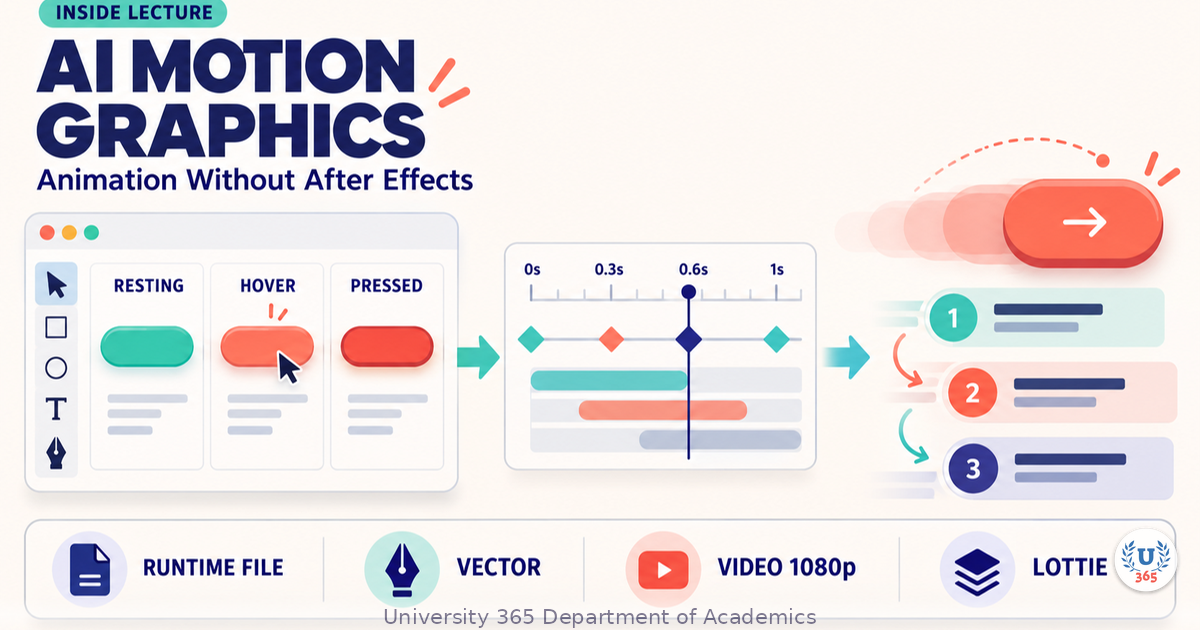

UID University 365 Institute of Design
Series Motion Graphics | Level Basic (Free)
Duration 15 to 20 minutes | Access Free
Digital Design, UX/UI, Visual Communication, Motion Graphics, Creative Technology

UNOP Sound (University 365 Neuroscience Oriented Pedagogy)
Take five minutes to prepare your brain. Play the isochronous tone track (40Hz gamma frequency) with your eyes closed. Gamma-frequency tones before a learning session raise attention and make the material easier to absorb.
[Audio player: UNOP Pre-Lecture Isochrone (40Hz, 5 minutes)]
In this Lecture

The Hook: When the Motion Matters More Than the Frame
A button that scales slightly on hover and settles with a small overshoot tells a user the interface heard them. A loading spinner that behaves the same way says the product is still working. Motion carries meaning in an interface, and for years the only way to produce that meaning professionally was a timeline editor costing a monthly fee and a learning curve measured in months.
That has changed, but not in the way the marketing suggests. The 2026 tool landscape splits into distinct capabilities, and they are not interchangeable. Text-to-video tools generate frames. Design-tool animation features add transitions inside the tool you already use. Interactive animation engines produce runtime files that respond to user input. Motion design applications produce broadcast footage. Choosing the wrong family costs you days.
This lecture teaches you to pick the format first, then the tool, then the timing. You will produce real motion work without opening After Effects, and you will know exactly which jobs still belong there.
Step 1: Choose the Motion Format Before the Tool
Every motion decision starts with one question: where does this animation have to run?
Four destinations, four formats
Destination | Format the product needs | What can never work |
A web or app interface | A runtime animation file that responds to state | A video file pretending to be a button |
A marketing page or landing hero | Vector animation or an optimized video clip | A multi-megabyte frame sequence |
Social and short-form video | A video file at platform resolution | An interactive runtime file |
Broadcast or film insert | High bitrate video at production resolution | A browser-based render of any kind |
Write the destination on paper before you open a tool. Teams lose more time redoing motion in the wrong format than they lose learning any interface.
The size rule
Runtime animation files are small because they store shapes and keyframes, not pixels. A runtime file for a UI micro-interaction is often measured in tens of kilobytes, where the equivalent video clip runs into megabytes and cannot respond to anything. When someone proposes a video for an in-interface animation, the correct answer is almost always no.
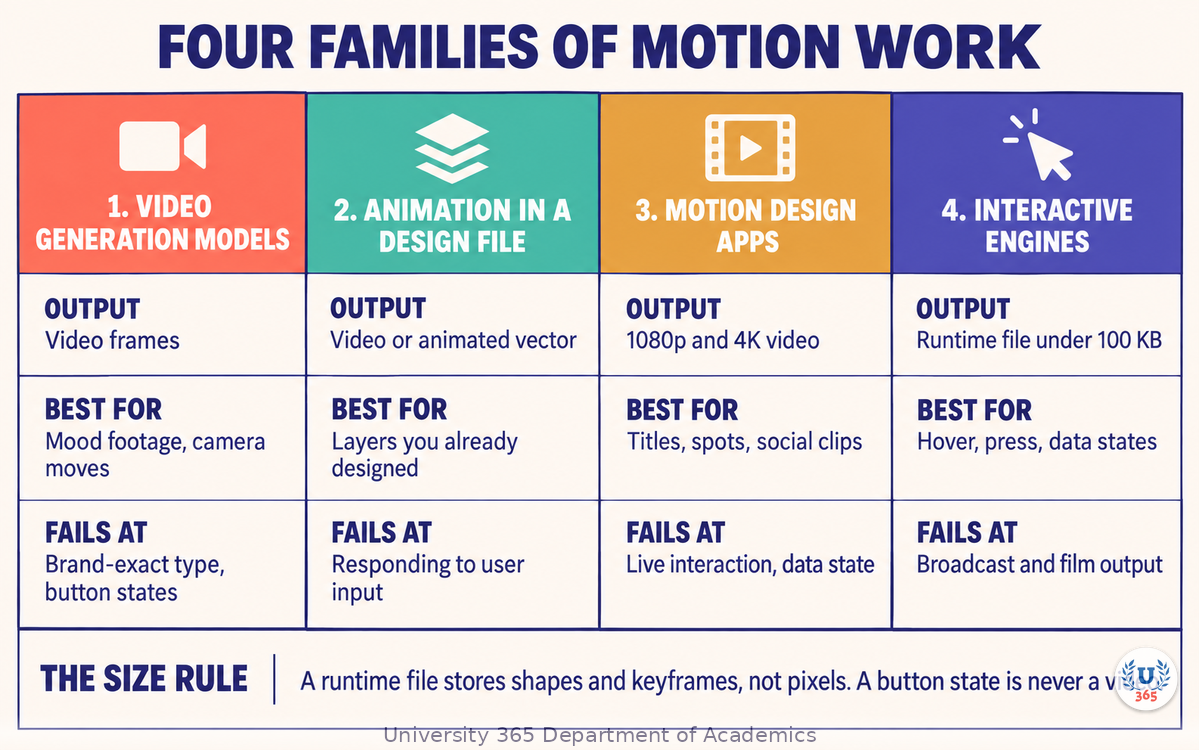
Step 2: Four Families of Motion Work
The tools group into four families. Most published comparisons flatten them into one list, which is why designers keep picking the wrong one.
Family 1: Video generation models
Describe a scene in words and receive generated video frames. These models are strong at atmospheric footage, camera movement on a still image, and short abstract sequences. They are weak at brand-exact typography, precise interface geometry, and anything that must be identical on a second render.
Use them for mood and background footage. Do not use them for a button state.
Family 2: Animation inside a design file
Design tools now carry their own animation features. You animate layers that already exist in your design file, with no export and re-import step. This family wins on speed when the design is already in that tool and the output is a video or an animated vector.
Family 3: Dedicated motion design applications
Browser-based and desktop motion tools built around a timeline with templates, presets, and import from design files. They cover the work most teams used After Effects for: animated titles, product spots, social clips, data-driven graphics, and text animation presets.
Family 4: Interactive animation engines
State machine editors where you define states and the transitions between them, then export a compact runtime file that ships inside a product. This is the only family whose output responds to hover, press, data, and application state. It is not a video tool, and it should never be judged as one.
How to read the pricing pages
Free tiers differ in ways that matter more than the price. Some cap the export resolution or watermark the file. Some let you create freely but gate shipping a runtime file to a paid plan. Some give the full professional feature set to individuals and charge teams. Check three things before committing a workflow: the watermark, the maximum export resolution, and whether the runtime format you need is behind a paywall.
Step 3: Animating Without a Timeline
If you know design tools, you can animate without learning a timeline at all. The technique is to build the states and let the tool interpolate.
The auto-animate method
Duplicate the artboard twice. Name them by state: resting, hover, active.
Change only what differs between the states. Move the position, change the scale, adjust the colour, swap the icon.
Ask the tool to animate between the states. It generates the transition and the easing.
Adjust the duration, and add a small overshoot on the settle.
This produces a working interaction in minutes because you are describing states rather than plotting keyframes. It is also easier to hand over, because the states are named and the intent is readable.
The keyframe method, when you need control
Some moments need a specific choreography: a stagger across five list items, a number counting up in step with a chart, a logo assembling in a fixed order. For those, use the timeline and set the keyframes directly. Plan the sequence on paper first as a numbered list of moments, because timeline work is where the time disappears.
Motion tokens keep a product consistent
Decide the durations and easings once and name them: a fast duration for micro-interactions, a standard duration for panel transitions, one easing curve for entrances and another for exits. Share that list with engineering. When every animation in a product uses the same three numbers, the product feels intentional even when the animations are simple.
Step 4: Prompting Motion That Reads
A motion prompt states the same five things a prototype prompt does, plus the motion itself. Leave out the motion wording and you get a still image with a slow zoom.
The five parts of a motion prompt
The subject. What moves. Name the elements, not the mood.
The choreography. The order and direction: "headline rises first, then the subtitle fades in 120 milliseconds later, then the button scales in".
The timing. Total duration in seconds, and the beat count if there is music.
The style constraints. Palette hex codes, typeface, background, and what must not appear.
The output format. Video at a stated resolution and frame rate, an animated vector, or a runtime file.
A worked example
Animate a ten-second product title sequence, 1920 by 1080, 30 frames per second. Background is solid #2B2A6B. The headline "DESIGN FASTER" enters from the bottom with a 20 pixel rise and a fade over 500 milliseconds. The subtitle "A University 365 lecture" fades in 200 milliseconds after the headline settles. A coral #FF6B57 underline draws left to right under the headline over 400 milliseconds, then the whole composition holds for one second and fades out over 300 milliseconds. Use one typeface, uppercase headline. Do not add particles, lens flares, or music visualisation.
Correct by describing the delta
When the timing is wrong, describe the change in numbers, not adjectives. "Make it snappier" produces a guess. "Reduce the headline entrance to 300 milliseconds and start the subtitle at 250 milliseconds" produces the edit you wanted.
Step 5: Timing, Easing, and the Rules That Make Motion Feel Right
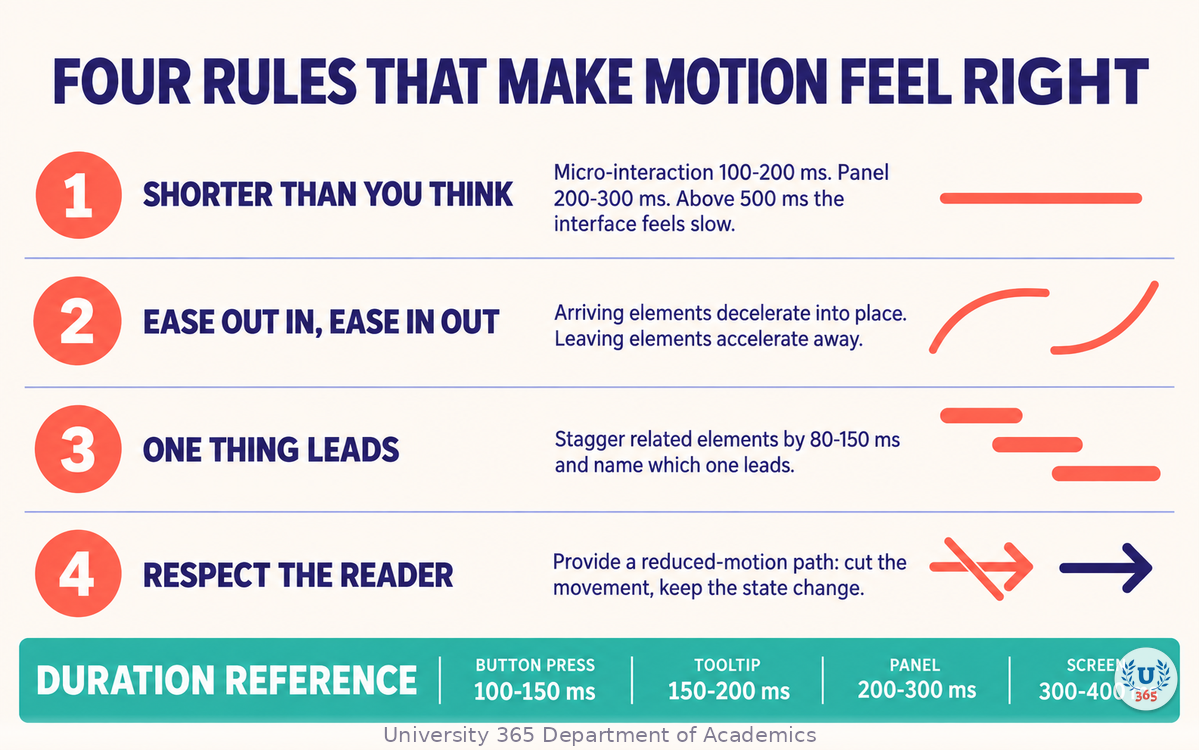
Motion quality is mostly arithmetic. Four rules carry most of it.
Rule 1: Shorter than you think
Interface motion should be fast. A micro-interaction feels responsive in the range of 100 to 200 milliseconds. A panel transition feels right around 200 to 300 milliseconds. Above 500 milliseconds, users start to perceive the interface as slow, no matter how elegant the curve.
Rule 2: Ease out on entrance, ease in on exit
Elements arriving should decelerate into place. Elements leaving should accelerate away. Reversing these two is the single most common reason amateur motion feels wrong, and it is also the easiest to fix.
Rule 3: One thing leads
Give a sequence a clear leader. When three elements move simultaneously with equal weight, the eye has nowhere to land. Stagger them by 80 to 150 milliseconds and name which one leads.
Rule 4: Respect the reader
Motion that loops forever, flashes, or moves large areas at speed is a barrier for people with vestibular sensitivity. Provide a reduced-motion path: cut the movement, keep the state change. Most platforms expose a user preference for this, and honouring it is a requirement rather than a nicety.
The duration cheat sheet
Motion | Duration | Easing |
Button press feedback | 100 to 150 ms | Ease out |
Tooltip or small popover | 150 to 200 ms | Ease out |
Panel or drawer | 200 to 300 ms | Ease out on open, ease in on close |
Full-screen transition | 300 to 400 ms | Ease out on open, ease in on close |
Brand title sequence | 6 to 12 s total | Per beat, with holds |
Write these numbers into your motion token list and stop renegotiating them on every project.
Step 6: Where After Effects Still Wins
Be honest about the boundary. After Effects remains the right tool for three categories, and pretending otherwise wastes money.
Compositing and video effects
Merging live footage with generated elements, camera tracking, rotoscoping, keying, and colour work at production quality. Browser tools do not do this.
Broadcast and film deliverables
Deliverables requiring specific codecs, high bitrate exports, frame-accurate audio sync, or colour-managed pipelines. The output specification decides the tool.
Complex nested choreography
Sequences with dozens of interdependent layers, expressions, and rigs. A dedicated compositor with expressions and a real render queue handles this where a browser editor stalls.
For everything else, which in most design teams is most of the work, the modern alternatives are faster, cheaper, and produce better handoff files.
Step 7: Export, Handoff, and Performance Budget
Motion work is not finished when it looks right on your screen.
Set the performance budget first
Decide the maximum file size and the target frame rate before you build, and check the exported file against both. A beautiful animation that drops frames on a mid-range phone damages the product more than no animation.
Name the files so the team can use them
Export with a naming pattern that states the component, the state, and the version: button-primary-hover-v2. Name the source file the same way. This sounds trivial until a sprint review and four people cannot tell which file is current.
Hand over the source, not a screen recording
Where the output format is a runtime animation file, hand over that file plus the source. Where the output is video, hand over the project file and the token list. Never hand over a compressed screen capture of the animation playing, because the team cannot retime it.
Check the three failure points
Contrast through the animation. Sample the frame at the midpoint, not just the first and last, and check the text against the moving background.
The first frame. If the animation starts on a blank frame, users see a flash. Start on the resting state.
The reduced-motion path. Load the page with reduced motion enabled and confirm the interface still communicates state changes.
Feynman Summary: Explain It Like You Are 12
Imagine you want to show a friend how a door works. You could record a video of a door opening. Your friend watches it, but they cannot touch it or open it themselves.
Now imagine you hand them a door they can actually open. That is the difference between a video and an animation that runs inside an app.
Most people building animations today have two jobs to choose between: make a video that everyone watches, or build something that responds when someone taps. Pick the job first. A video cannot be tapped. A button that responds cannot be sent to a film festival.
Then think about speed. If a door opens slowly, you think it is broken. If your animation takes two seconds, people think your app is broken. Fast, gentle, and in the right order: that is most of the craft.
Mindmap: The Complete Picture
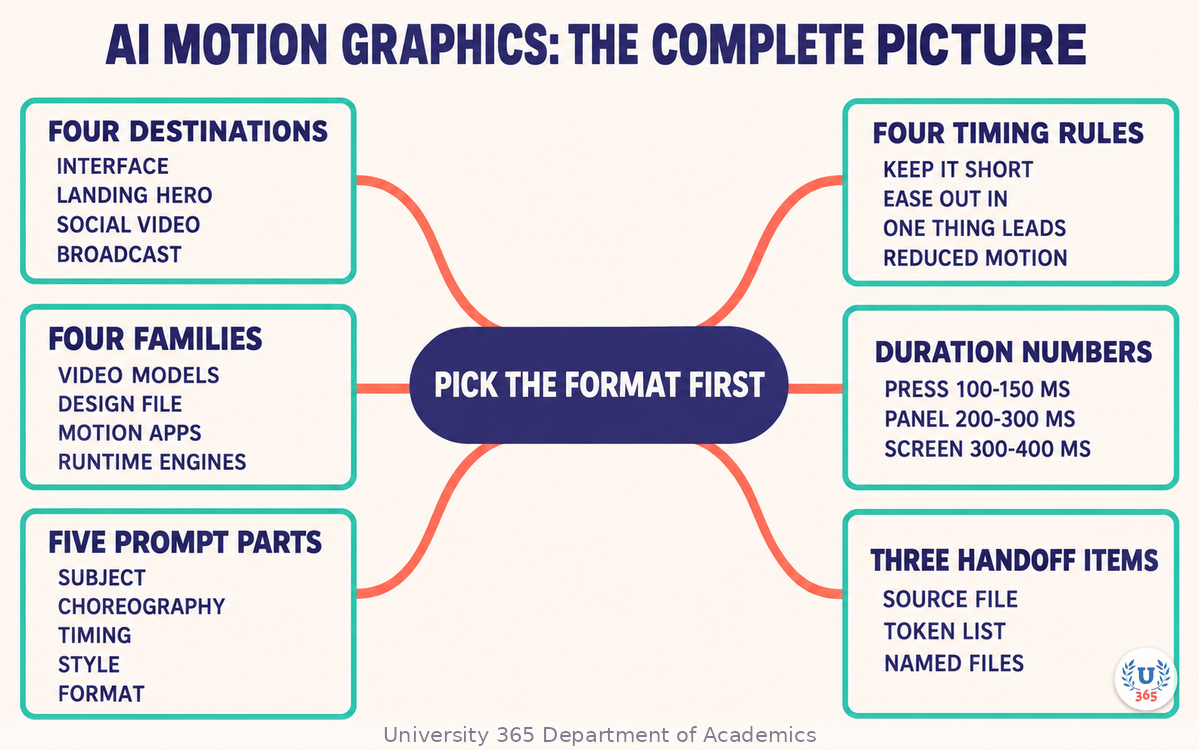
The mindmap sets out the four destinations and their formats, the four tool families and where each fails, the five parts of a motion prompt, the four timing rules with their duration ranges, the reduced-motion requirement, and the three artefacts that make motion work reusable.
UNOP Sound (University 365 Neuroscience Oriented Pedagogy)
Take five minutes to consolidate your memory. Play the isochronous tone track (10Hz alpha frequency) with your eyes closed. Alpha-frequency tones after a learning session support consolidation, helping move what you just learned from short-term to long-term memory.
[Audio player: UNOP Post-Lecture Isochrone (10Hz, 5 minutes)]
Practical Exercise: A Ten-Second Brand Animation in One Sitting
Exercise: One title sequence, one set of numbers
Choose a destination. Pick video at 1920 by 1080, 30 frames per second. Write it down.
Write the choreography as a numbered list of moments, with a duration in milliseconds for each.
Build it in an animation tool using the auto-animate method: two artboards, named states, and a transition between them.
Apply the four timing rules from Step 5 and correct anything that breaks them.
Export at 1920 by 1080, 30 frames per second. Check the file size against a budget you set before exporting.
Sample three frames: the first frame, the midpoint, and the final held frame. Check text contrast on each.
Build the reduced-motion variant. Strip the movement, keep the state change.
Name both files with the component, state, and version pattern.
Write the motion token list you used: durations and easing curves, named.
Send the token list to an engineer and ask whether the numbers are implementable as specified.
What to Observe
Which moment in your sequence took the most time to get right, and was it the choreography or the easing?
Did the exported file stay inside the performance budget you set?
Did the midpoint frame pass the contrast check, or did the text disappear against the background?
Could an engineer build your motion from the token list alone, with no access to your file?
Applied AI Connection
You chose the destination, wrote the choreography, set the timing numbers, and judged whether the result read correctly. The tool generated the transitions, interpolated the easing, and produced the export. This is the CI-First principle in motion work: HI is the orchestrator, AI is the amplifier, and CI = HI + (AI x HI). Motion that carries meaning is a human judgment. Motion that renders quickly is the AI contribution.
Glossary
Term | Definition |
**Motion graphics** | Animated graphic design used to communicate, explain, or brand, typically for video or interface. |
**Runtime animation file** | A compact animation file that plays inside a product and responds to user input and application state. |
**State machine** | A model of animation where named states are defined and rules describe the transitions between them. |
**Keyframe** | A defined value at a point in time that the tool interpolates between. |
**Easing** | The acceleration curve of a transition, such as ease out on entrance and ease in on exit. |
**Stagger** | A deliberate delay between the starts of related animations so the movement reads in order. |
**Overshoot** | A small movement past the resting position before settling, used to make a motion feel responsive. |
**Motion token** | A named, reusable duration or easing value that keeps motion consistent across a product. |
**Reduced motion** | A user preference to minimise animation, which a compliant interface must honour. |
**Compositing** | Combining multiple visual layers, footage, and effects into a single finished shot. |
**Performance budget** | A stated maximum file size, frame rate, or load cost an animation must stay inside. |
**CI-First** | Co-Intelligence First: the U365 principle that the human orchestrates and the AI amplifies. CI = HI + (AI x HI). |
Quiz: TEST YOUR UNDERSTANDING
1. What is the first decision in any motion task?
A) Which tool has the best free tier
B) Where the animation must run, and therefore which format it needs
C) Which easing curve to use
D) Whether to use a text-to-video model
2. Which family's output can respond to a user hover?
A) Video generation models
B) Dedicated motion design applications
C) Interactive animation engines with a state machine
D) Any of them, once exported as a video
3. What is the correct easing direction for an element arriving on screen?
A) Ease in, so it accelerates into place
B) Linear, with no easing
C) Ease out, so it decelerates into place
D) A full bounce on every entrance
4. What duration range usually feels responsive for a button press?
A) 500 to 700 milliseconds
B) 300 to 400 milliseconds
C) 100 to 200 milliseconds
D) 20 to 40 milliseconds
5. Which handoff artefact lets an engineer rebuild your motion without your project file?
A) A screen recording of the animation
B) A named motion token list of durations and easing with the source file
C) A screenshot of the first frame
D) A description of the mood you were aiming for
Answers: 1-B, 2-C, 3-C, 4-C, 5-B
Related Resources
U365 INSIDE Publications
AI for Prototyping: From Sketch to Interactive in 15 Min: The prototype loop that produces the states your motion will animate
AI Image Generation: Stable Diffusion for Designers: Generating the still assets a motion project starts from
External Resources
LottieFiles: Runtime animation authoring with an AI assistant that produces editable keyframes: lottiefiles.com
Rive: State machine animation that responds to user input: rive.app
Jitter: Browser-based motion design with design file import: jitter.video
Cavalry: Procedural 2D motion design, free for individuals: cavalry.scenegroup.co
Related U365 Lectures (Coming Soon)
Lecture 6: Color Theory and AI: Palette Generation That Works (UID, Visual Communication)
Lecture 10: The Future of Creative Work: Human + AI Collaboration (UID, Creative Technology)
Lecture 8: Generative Brand Identity (UID, Creative Technology)
U.Copilot for This Lecture
Discuss this lecture with U.Copilot, your AI chat companion trained on this content.
Copy and paste the following prompt into the U.Copilot chat on university-365.com:
You are U.Copilot for Lectures, an AI chat companion trained on University 365 lecture content. You are helping a Fellow who just completed the lecture "AI Motion Graphics: Animation Without After Effects" from the Motion Graphics series at the U365 Institute of Design (UID). Your role is to help the Fellow choose a motion format and produce motion that reads. You can: - Clarify any concept from the lecture: the four destinations and their formats, the four tool families, the five parts of a motion prompt, the four timing rules, and the handoff artefacts. - Review a motion prompt the Fellow wrote and identify which of the five parts is missing or vague. - Help the Fellow convert a vague timing request such as "make it snappier" into specific millisecond values. - Suggest the correct format for a motion task the Fellow describes, and say plainly when After Effects is the right answer. - Help the Fellow build a reduced-motion variant and check the first, midpoint, and final frames. - Discuss performance budgets for a stated platform and device class. Follow the CI-First approach: the Fellow orchestrates, the AI amplifies. Never present a generated transition, timing, or easings as a decision. Ask the Fellow to state the destination and the output format before suggesting any build step. Use context-rich, role-aware responses that account for the Fellow's experience level and the platform they are animating for.
Next Steps
Now that you can pick a motion format and produce it without a timeline editor, here is what to do next:
Run the practical exercise on a real component or title from your current work.
Build your motion token list for one product: three durations and two easings, named.
Audit an existing animation against the four timing rules and fix what breaks them.
Add the reduced-motion path to one animation that currently ships without it.
Continue the series with "Color Theory and AI: Palette Generation That Works" to fix the palette your motion work depends on.
Explore the U365 Motion Graphics tag on INSIDE for more practical design method with the CI-First approach.
The tools will keep changing. The judgment will not: decide where the motion runs, decide what it must communicate, and make it fast enough that nobody notices the machine doing the interpolation.
IMPORTANT NOTICE
This lecture is published by University 365 as part of its INSIDE Publications Hub. The content is free to read for all visitors. Lectures in this series may be part of a structured academic program leading to a Micro-Credential for your Career (MCC). To enroll in an academic program, visit university-365.com/tuition.
This content is for educational purposes. Tool capabilities and pricing change quickly. Verify current features, watermarks, export limits, and licensing against each vendor's own documentation before you commit a team workflow to them.
Copyright University 365, Inc. All rights reserved. This content is protected under University 365's copyright policies. For permissions or inquiries, contact uda@university-365.com.
Published by the Department of Academics, University 365.
Lecture delivered by the University 365 Institute of Design (UID).
Joe Borazian, Dean of Design, UID
Signed for the academic year 2026.




Comments